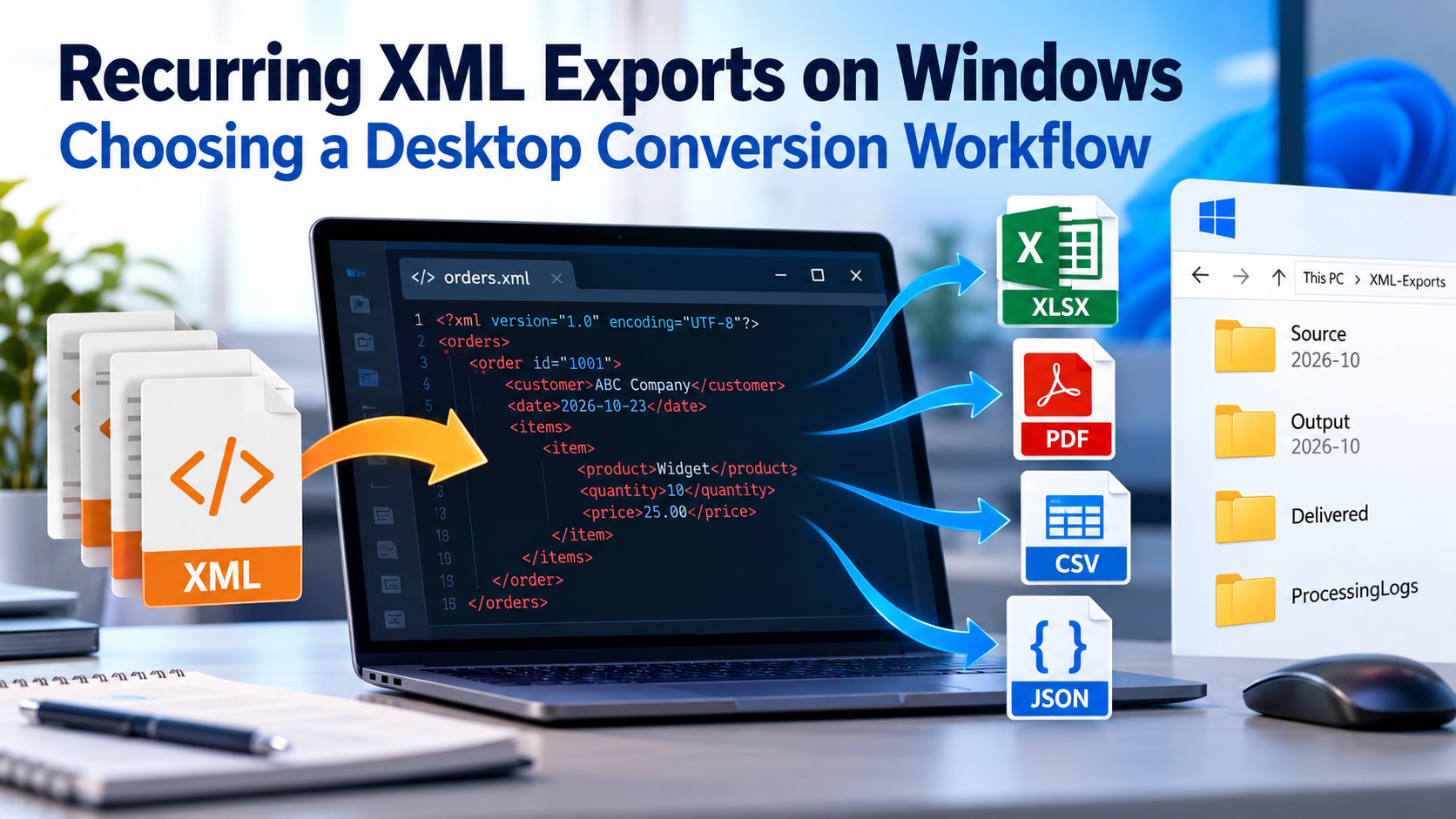
Plenty of programs produce XML on a schedule: accounting tools, inventory systems, web stores, survey platforms. The file arrives every week or every month, and then it sits there, because almost nobody wants to read raw XML. Somebody has to turn it into something people can use. If that’s your job, the goal is to make it a routine you don’t have to think about.
Know your export
Start with the basics. Which program creates the file? Who runs it, and when? Do you get one file or a stack of them? Write the answers down, and note whether the layout ever changes. Software updates sometimes rename a field or add a new one, and you often only find out when something further down the line stops working.
It’s a short note, but without it the process lives in one person’s head, and that person eventually takes time off.
Ask what happens to the file next
Who opens it after you, and what do they do with it? That decides the format.
Someone approving figures probably wants a PDF. It looks the same on every screen and is hard to change by accident. Someone working with the numbers wants a spreadsheet. Text that someone will edit points to a Word-style format, and content going on an intranet page points to HTML.
If the file feeds another system, your preferences don’t matter. That system has its own rules. Read its import documentation, or ask for a file it has already accepted and match it.
Keep the XML
Don’t delete the originals after converting. The converted file is the same data in a different shape, and some details may not carry over. Requirements change and numbers get questioned. When that happens, you’ll want the source.
A read-only folder for each month is enough. Your company’s retention policy decides how long the files stay.
Use separate folders
Put the output somewhere other than the source. For example:
\XML-Exports\
\Source\2026-10\
\Output\2026-10\
\Delivered\
This makes it harder to email a raw file by mistake, and finished work is easy to spot. On a shared drive, check who can see what. Most recipients only need the output folder.
Name files the same way every time
A name like export(3) final NEW.pdf tells you nothing. Use the report name, the date as year-month-day, and a number if there’s more than one file that day: inventory-export_2026-10-23_01.pdf. Dates in that order sort correctly in any folder view.
Skip spaces and symbols if scripts or uploads are involved. Pick a pattern once, write it in your notes, and stick with it.
Check before you send
Conversion changes the format, and that’s all it does. It doesn’t clean the data, validate it against a schema or fix mistakes. Bad values in the XML will still be bad in the spreadsheet. Validation and cleanup are separate jobs.
So open the result in the program the recipient will use. Compare a few records with the source. Do the record counts match? Do the totals? Watch for garbled accented characters, which usually mean an encoding problem. The first time you deliver a file, and after any change, ask the recipient to confirm it works for them.
Keep this check as a short list next to your process notes. It takes a couple of minutes.
Why a desktop tool
Converting files one by one by hand gets old fast. A custom integration costs time and money. A desktop converter on Windows sits in between. It fits well when:
- the exports already land on your PC or a shared drive,
- the same conversion repeats every cycle,
- you’d rather not upload company data to a website just to change its format.
CoolUtils Total XML Converter is one option for this. You select the XML files, choose an output format and a destination folder, and convert. The current list of supported formats and the instructions are on the product page. Check there, because features can change between versions.
CoolUtils offers standard, Pro and server editions, and they aren’t the same product. The server edition is aimed at server or automated use and has its own licensing. Compare the editions on the product page before you buy. Then test on a few of your real files and run the checks above.
FAQ
Does converting XML clean or fix my data? No. Conversion only changes the file format. Errors, gaps or duplicates in the source XML will show up in the output too. Handle data checks and cleanup as a separate step.
Should I keep the original XML after converting? Yes. Some details may not carry over to the new format, and you may need to convert again or check a figure against the source later. Keep the originals for as long as your retention policy requires.
Which output format should I choose? Choose based on the next person or system. PDF suits reading and approval, spreadsheets suit working with numbers, and another system’s import documentation decides what it accepts. When in doubt, ask for a sample file that worked before.
How should I name converted files? Use the report name, the date as YYYY-MM-DD and a sequence number if needed. Avoid spaces and special characters, and use the same pattern every time.
When does a desktop converter make sense? When the same XML conversion repeats regularly, the files are already on your Windows PC or network, and you want to keep the data off online services.
Which edition of CoolUtils Total XML Converter do I need? It depends on how you work. The standard, Pro and server editions differ, and the server edition is meant for server or automated use. Check the product page for what each edition includes.
In short
Know the export and know the recipient. Keep the originals, use separate folders and steady file names, and do a quick check before anything goes out. Don’t expect conversion to fix the data, because it only changes the format.