Introduction
Getting stuck on an FRP lock is very frustrating. You reset your phone, but now it asks for an old Google account. Many people search for FRP bypass because they forgot their login or bought a used phone. Sadly, not all bypass methods work every time. Some fail due to Android updates or small errors.
This is where Dr.Fone – Screen Unlock (Android) becomes helpful. It offers a guided way to remove FRP and other screen locks. In this article, you will learn why FRP bypass fails and how to fix it step by step.

What Is FRP & Why Is It Hard to Bypass
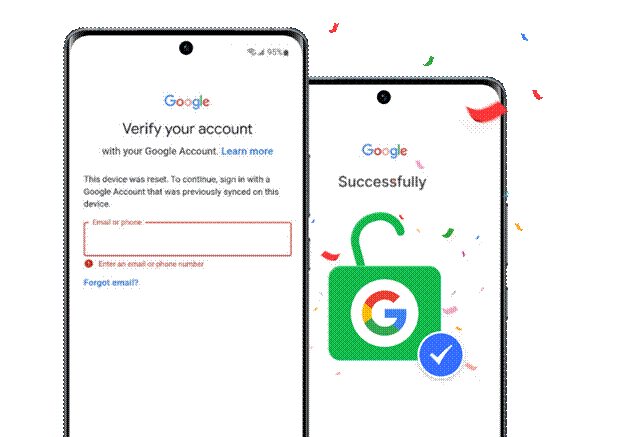
FRP stands for Factory Reset Protection. It is a security feature on Android phones. It turns on when a phone is reset without removing the Google account first. After the reset, the phone asks for the old Google email and password.
This helps protect lost or stolen phones. But it can block real owners too. Over time, Android security has become stronger. New updates close old tricks. Because of this, many DIY FRP bypass methods stop working. What worked before may fail today.
Common Reasons FRP Bypass Isn’t Working
Many users try FRP bypass but still get stuck. Below are the most common reasons, along with simple fixes you can try.
Outdated or Patched Bypass Method
Issue:
Some FRP bypass tricks worked in the past. But Android updates often close these loopholes. If your phone is running a newer Android version, old methods may fail.
Fix:
- Check your Android version in recovery or setup info.
- Avoid random videos made years ago.
- Use updated tools that support new Android security.
- If manual tricks fail, try a trusted FRP removal tool that is updated often.
Incorrect Steps or Manual Errors
Issue:
Most FRP bypass methods need exact taps and timing. Missing one step can stop the process.
Fix:
- Read the steps fully before starting.
- Follow the guide slowly, one step at a time.
- Restart the phone and try again if it fails.
- Do not skip screens or rush through taps.
Incompatible Device Models or Android Versions
Issue:
Some bypass methods only work on certain brands or Android versions. What works on one phone may not work on another.
Fix:
- Confirm your phone brand and Android version.
- Use methods made for your exact device.
- Avoid “one method fits all” tricks.
- Choose tools that support many brands and versions.
Network or Connectivity Issues
Issue:
Some FRP tricks need Wi-Fi or mobile data during setup. Poor internet can break the process.
Fix:
- Use a stable Wi-Fi connection.
- Restart your router if needed.
- Avoid weak or public networks.
- Keep data on during setup if required.
Lack of Developer Options (USB Debugging/OEM Unlocking)
Issue:
Advanced methods need USB debugging or OEM unlock. If the phone is already locked, you can’t enable them.
Fix:
- Do not rely on ADB methods if the phone is locked.
- Use software that does not need USB debugging, like Dr.Fone – Screen Unlock.
Why Dr.Fone – Screen Unlock (Android) Helps When Bypass Fails
When manual FRP bypass tricks stop working, Dr.Fone – Screen Unlock (Android) becomes a safe and trusted option. Android security keeps changing, and old tricks often fail after updates. Dr.Fone is updated often, so it works with new Android versions, even the latest Android 16. This makes it helpful when other FRP bypass methods do not work at all.
Dr.Fone is made for normal users, not tech experts. You do not need coding skills or risky APK files. Another big reason Dr.Fone works well is its wide device support. It can remove Google FRP lock after a factory reset, even if you forgot the Google account or bought a second-hand phone.
Dr.Fone does more than FRP bypass. It can also unlock other screen locks, such as PIN, pattern, password, and fingerprint. This makes it a complete screen unlock tool for Android users.
Key Advantages of Dr.Fone – Screen Unlock (Android)
- Eliminate the FRP locks of Samsung, Xiaomi, Oppo, Vivo, Realme, Motorola, Huawei, and more without requiring passwords or Google account.
- It is compatible with PIN, pattern, password, and fingerprint locks of more than 18 Android brands and over 2000 phone models.
- 100% data protection during the process of gaining full access to your device without any security risks.
How to Use Dr.Fone to Bypass FRP
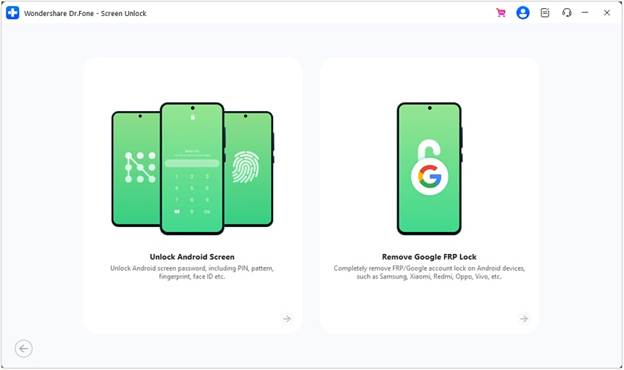
Step 1. Install and open Dr.Fone on your computer, click “Toolbox > Screen Unlock, select Android, then choose “Remove Google FRP Lock.”

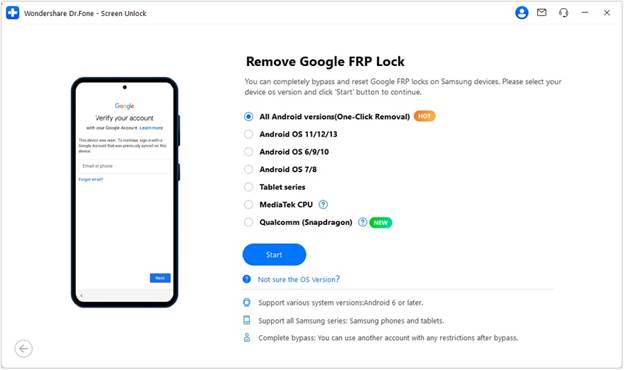
Step 2. Select your phone brand, like Samsung, Xiaomi, Redmi, or others. Choose the correct Android version when asked.
Step 3. Connect your phone with a USB cable. Follow the on-screen guide to enter the required mode by pressing the volume keys when told.
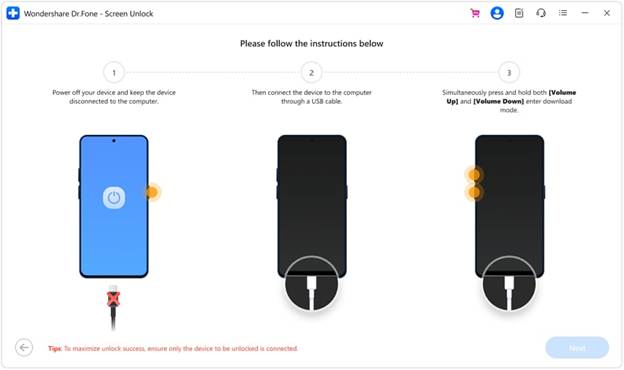
Step 4. Wait a few minutes while Dr.Fone removes the FRP lock. When finished, click “Done.”
Troubleshooting: Step-by-Step Fixes When Bypass Fails
If an FRP bypass does not work on the first try, stay calm. This is very common. Small setup problems, missed steps, or weak connections often cause the issue. In most cases, trying again the right way again fixes it.
1. Restart and Prepare Your Device
Start with a clean setup. Restart both your phone and your computer to clear small bugs. Use a real, good-quality USB cable. A loose or damaged cable can break the connection. Also, charge your phone to at least 50%. This keeps it from turning off in the middle of the process.
2. Use the Latest Version of the Tool
Older software may not work with new Android updates. Open Dr.Fone – Screen Unlock (Android) and check for updates. Install the latest version before you try again. New updates add support for recent Android security changes and more phone models.
3. Connect the Phone the Right Way
Follow the connection steps slowly. Do not plug in the phone until the tool tells you to. If the screen shows Recovery Mode or Download Mode, enter it exactly as shown. Skipping or rushing a step can cause failure.
4. Try the FRP Removal Again
Run the process one more time. Let the software detect your phone model and Android version on its own. Then choose Remove Google FRP Lock and start again with fresh settings.
Tips to Avoid FRP Bypass Failures in the Future
- First, always remove your Google account before doing a factory reset. Go to Settings, open Accounts, select Google, and remove it. This step disables FRP protection safely.
- Second, store your passwords in a trusted password manager. This helps you remember Google logins when needed. It also keeps your data safe and easy to access.
- Third, keep your recovery email and phone number updated. These help you reset your account fast if you forget details.
- Fourth, make regular backups before resets or system updates. Backups protect your data and reduce risks.
- Finally, avoid random FRP tricks found online. Many do not work and can harm new phones or block updates. Stick to safe methods only.
Conclusion
Problems with FRP bypass are typical, but in most cases they can be fixed quite easily. Generally, the failures result from outdated methods, incorrect procedures, or bad connections. If you get your device ready and use a current tool such as Dr.Fone – Screen Unlock (Android), it will make things easier for you and you will save time. Make it a habit to reset phones the proper way so that you do not get FRP locks again.
-

-

-

-

-

-

-

-

-
-