
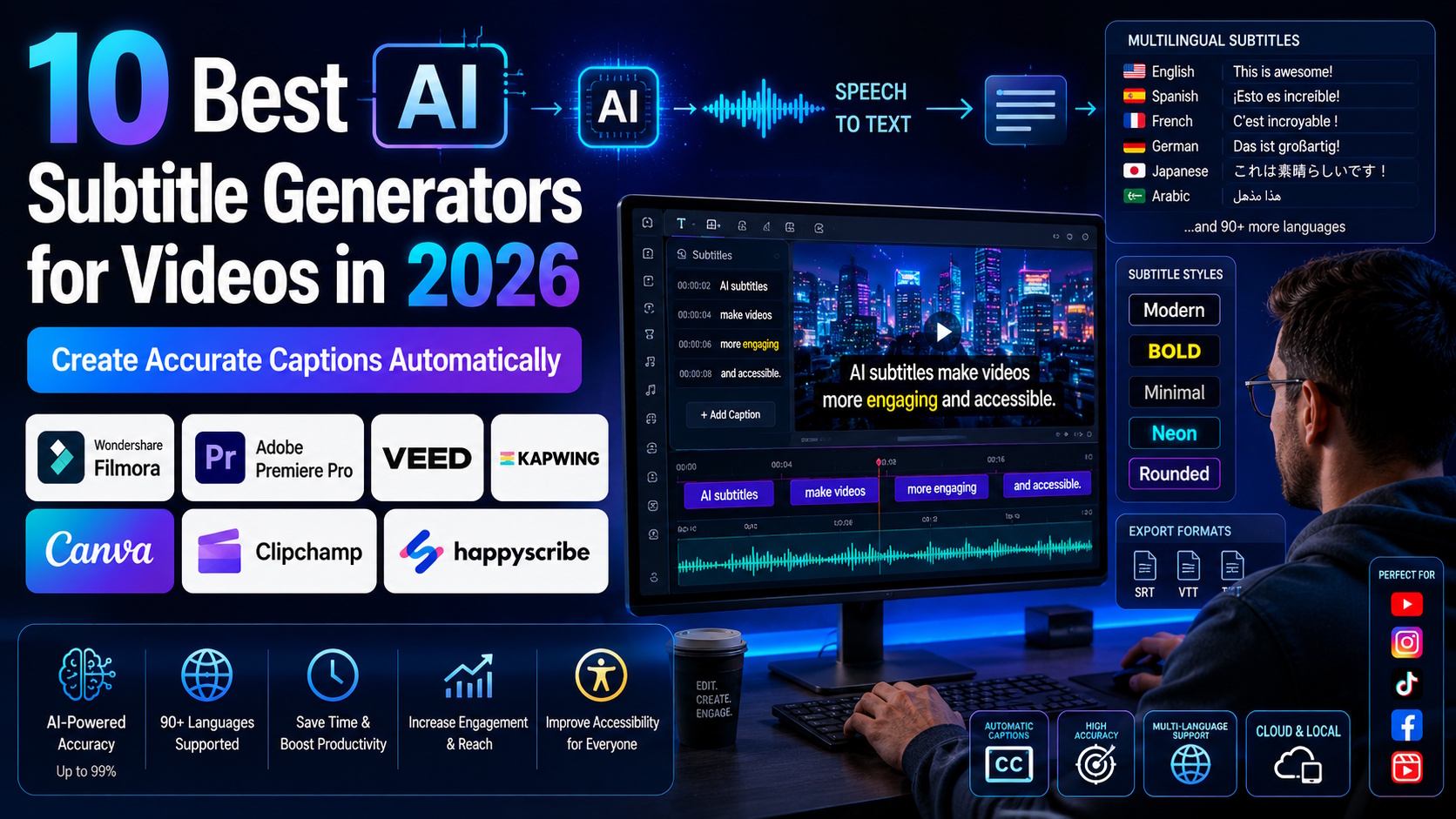
Creators generate subtitles from video to boost viewer retention on social media. Audiences remember messages better when they read and hear captions simultaneously. An auto subtitle generator saves hours of manual typing and makes thick accents or technical jargon easy to follow for everyone.
Search engines also index these captions to help your channel rank higher in organic search engine results. In this guide, you’ll learn the best way to generate subtitles from videos on a desktop or web browser.


Part 1. 5 Reasons To Generate Subtitles From Video With AI
Save time when you generate subtitles automatically for your long-form videos. Here are some reasons why you should use an AI subtitle generator when editing:
- Drive more shares: Captioned content often sees higher engagement
- rates and more reactions because the message is easier to digest quickly.
- Aid concentration: Text overlays help viewers stay focused in noisy environments such as cafes or busy offices.
- Target international markets: Localized auto captions allow your brand to connect with viewers in different countries without the cost of a full translation team.
- Repurpose content: You can turn your video transcripts into blog posts, newsletters, or social media captions.
- Onboard new hires: HR teams use subtitles in training videos to provide a consistent learning experience for all employees.
Part 2: Top 10 AI Subtitle Generators in 2026
These are the best video editing software and tools with an AI video caption generator.
Filmora: Highly Accurate and Stylish Subtitles for Fast Editing

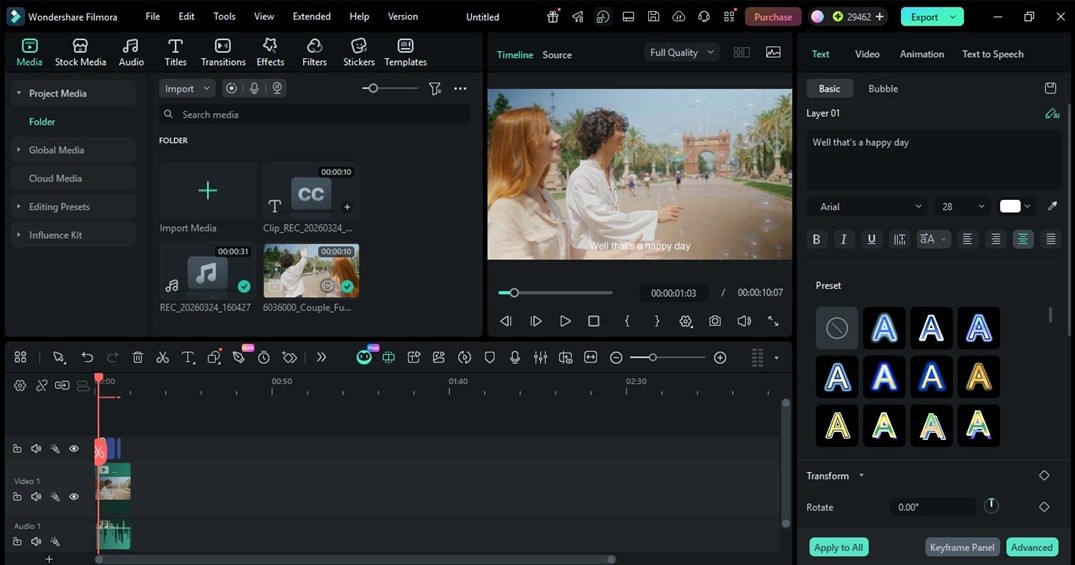
Wondershare Filmora has an auto caption AI to turn spoken words into text quickly. It supports 45 languages and features a Speech-to-Text tool that reaches up to 99% accuracy. You can choose from 68 animated templates to make your subtitles stand out after generating subtitles from your video.
This video editing software works well for social media creators and other users who want to translate their work into 23 different languages simultaneously.
Pros
- Custom fonts and colors match your specific brand style.
- SRT file exports work seamlessly on other video platforms.
- Precise timing tools align text with audio layers.
Cons
- The free trial puts a watermark on your finished project.
- Limited free AI credits for free users.
Adobe Premiere Pro: Professional Precision for Complex Projects

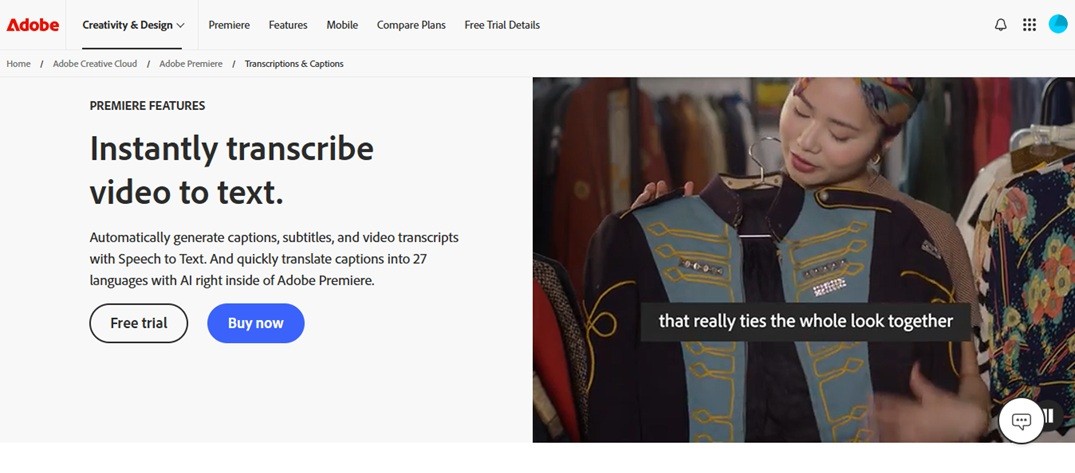
Adobe Premiere Pro simplifies the task of generating subtitles from video timelines. The Speech to Text tool handles 18 languages, like Korean and Japanese, with high precision. Professional editors can instantly turn these transcripts into formatted captions. You can access this feature as part of a Creative Cloud membership, which makes it a convenient addition for current users.
Pros
- Advanced typography controls offer total design freedom.
- Searchable transcripts make finding specific moments in long videos easy.
- Integration with other Adobe apps speeds up the professional workflow.
Cons
- The interface has a steep learning curve for new video editors.
- Subscription costs are a significant investment for casual users.
Private Transcriber Pro: Offline Processing for Sensitive Data

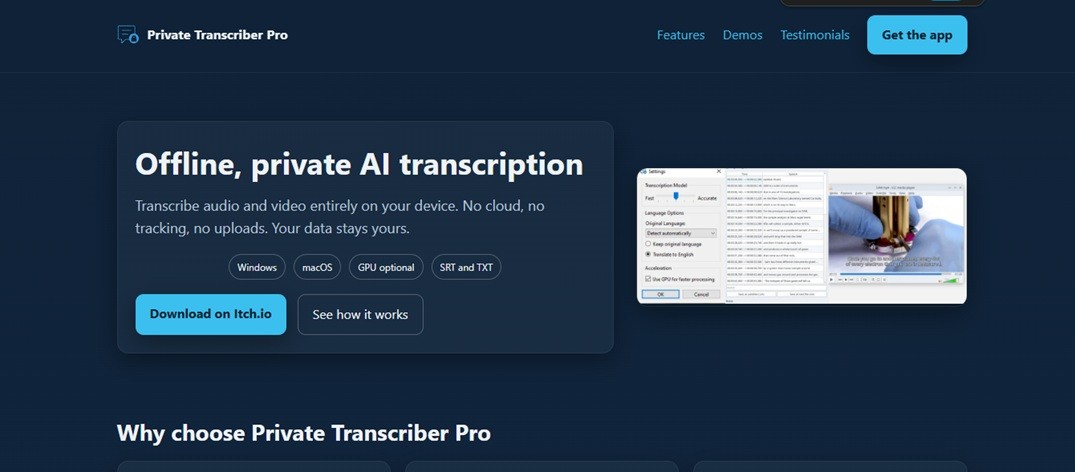
Private Transcriber Pro protects users who need to generate subtitles for videos without an internet connection. All processing stays on your local device, so no data ever touches the cloud. GPU acceleration is also available to speed up the transcription of SRT or TXT files. This tool is the best choice for professionals who want to handle private client information offline.
Pros
- Full offline functionality ensures total data privacy.
- A free demo lets you test files before you commit to a purchase.
- Simple export options allow for quick text analysis.
Cons
- Speed depends heavily on the power of your computer hardware.
- The software lacks built-in creative styling options for text.
DemoCreator: Educational Clarity for Teachers and Students

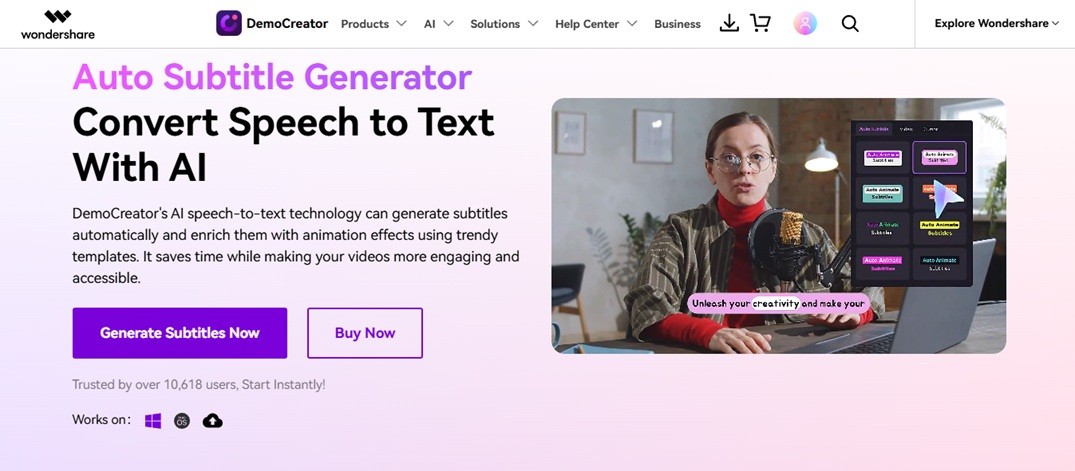
Teachers often need to generate subtitles for a video lesson to help students follow along. DemoCreator uses AI algorithms from Google and Microsoft to transcribe speech in over 90 languages. It includes 30 visual templates that animate your captions to keep learners engaged. The high accuracy rate helps keep technical terms in tutorials correct.
Pros
- Screen recording and subtitle editing happen in one video editor.
- Animated templates make educational content more interesting.
- Multilingual support helps reach students in different countries.
Cons
- Free version users face limitations on the length of their videos.
- The software focuses more on screen captures than cinematic projects.
Clipchamp: Simple Social Media Captions for Windows Users
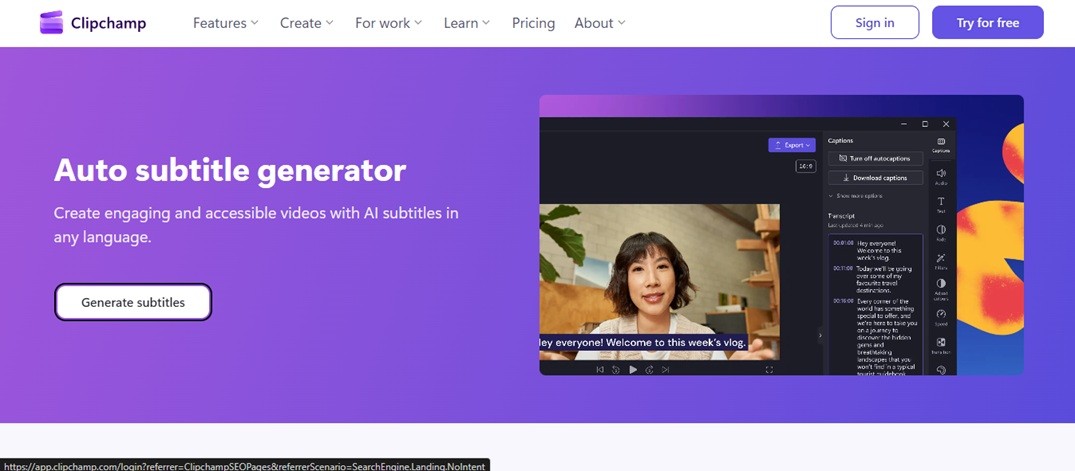
Clipchamp acts as a free automatic subtitle generator that comes pre-installed on many Windows computers. It offers a straightforward way to add text to short clips for TikTok or Instagram. You can edit the generated caption quickly if the AI misses a specific slang word. This tool is ideal for casual users who want a no-cost solution for basic projects.
Pros
- Direct integration with Windows makes the app very accessible.
- The user interface is clean and easy for beginners to navigate.
Cons
- Export options for 4K video require a paid plan.
- Advanced audio editing features are limited compared to other video editors.
Veed: Trendy Caption Styles for Influencers

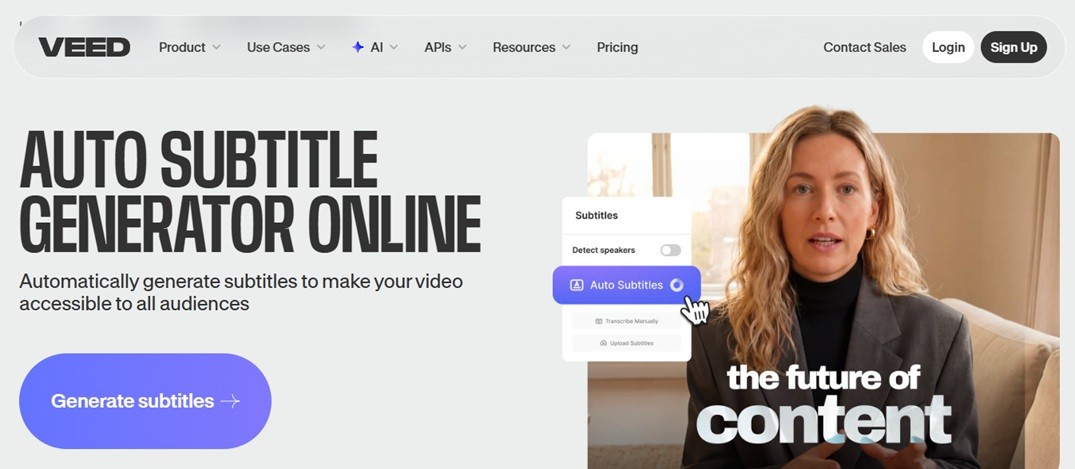
Veed provides an AI subtitle generator free of charge for those starting their content journey. It specializes in the “karaoke-style” animated captions seen on viral Reels and Shorts. You can upload a file and get a transcript in seconds. Influencers love this tool because it allows for quick edits directly in the web browser.
Pros
- The cloud-based system means you can edit from any computer.
- Allows users to create a Brand Kit.
Cons
- Free exports include a visible watermark on the video.
- Only two minutes per month of the Auto Subtitles feature is allowed for free users.
Kapwing: Collaborative Editing for Remote Teams
Kapwing serves as a powerful free AI subtitle generator for teams working from different locations. Multiple paid users can log into the same project to refine transcripts and adjust timing together. It handles various aspect ratios, making it easy to create versions for YouTube and Reels at once. This platform is perfect for groups that need a shared workspace.
Pros
- Real-time collaboration feature.
- The clean timeline makes syncing text and audio simple.
- Cloud storage keeps all team assets in one accessible place.
Cons
- Custom fonts aren’t accessible for free trial users.
- The price for the pro version is higher than that of some desktop apps.
Canva: Design-First Captions for Visual Brands
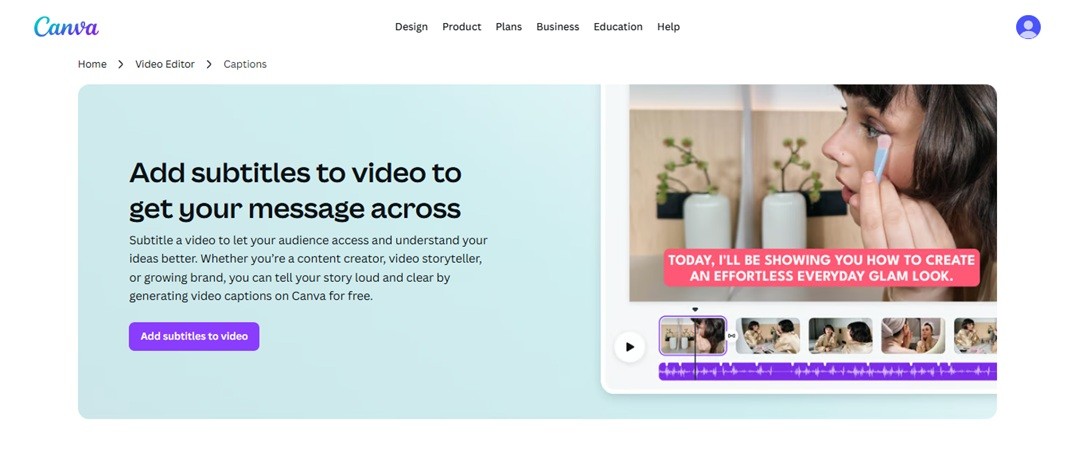
Canva added a feature to create automatic captions for your social media designs. You can match the text to your existing brand fonts and color palettes perfectly. Drag and drop elements around the screen to ensure the words do not cover important parts of the image. Small business owners who already use Canva for graphics will find this addition helpful.
Pros
- Access to a massive library of fonts and graphics improves the look.
- Brand kits keep all your social media content visually consistent.
Cons
- Limited video editing tools.
- Manual timing adjustments can feel slightly clunky for long videos.
Movavi: Fast and Easy Interface for Beginners

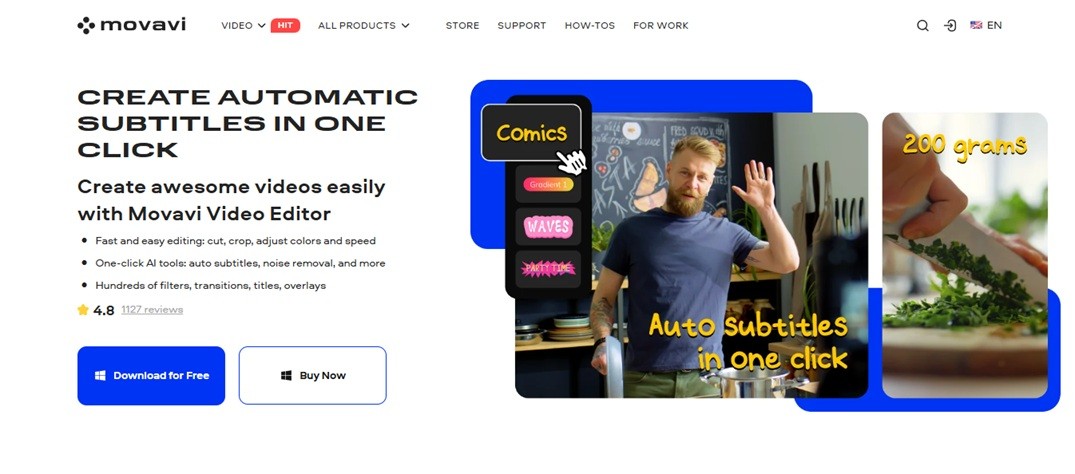
Movavi offers a reliable auto caption generator that focuses on speed and simplicity. It avoids complex menus, allowing you to drag a video in and get text out in a few clicks. Beginners enjoy the intuitive layout that doesn’t overwhelm them with too many buttons. This software is good for family videos or simple YouTube vlogs where you need quick results.
Pros
- Visual guides help you place text in “safe zones” for social media.
- Fast rendering saves time during the final export process.
Cons
- Customization options for text animations are somewhat basic.
- Output videos have a watermark for free users.
Happy Scribe: Free Online Transcription for Advanced Projects
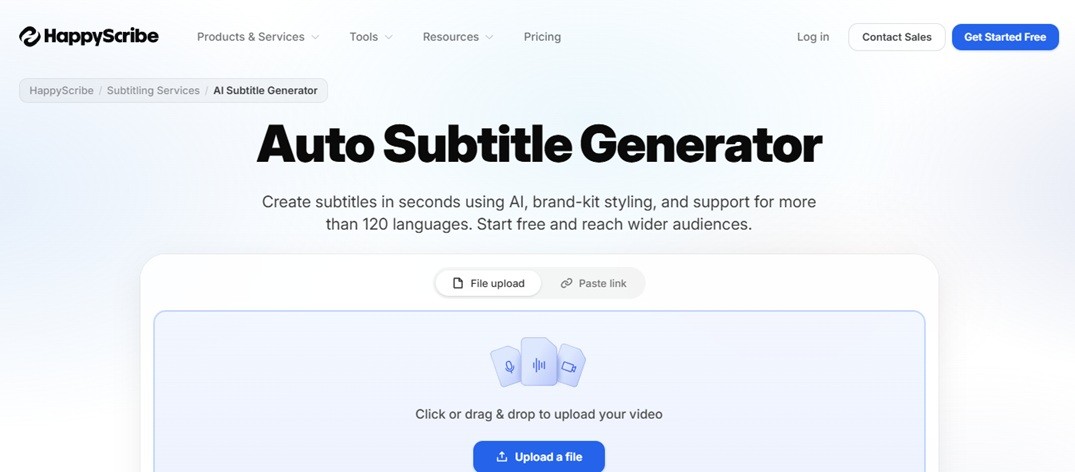
Happy Scribe is a dedicated service to generate subtitles for video files where accuracy is the top priority. It offers both AI-generated text and human-verified options for projects that cannot afford mistakes. The platform supports many formats and provides a clean editor to fix minor errors. Documentarians and journalists often choose this tool for its robust handling of long-form interviews.
Pros
- Gives a 10-minute free trial for creating subtitles
- Share subtitles in two modes: either edit or view only.
Cons
- Subtitles have a watermark for free trial users.
- It is a transcription tool first, so it lacks creative video editing effects.
Part 3. Compare Every Top Automatic Subtitle Generator
Different creators prioritize various needs, such as more video editing tools, ease of use, or accessibility. Use this table to help you select the best auto subtitle creator for your specific video projects.
| AI Subtitle Generator App/Tool | Features | Best For |
| Filmora | AI Speech-to-Text support for 45 languages, 23 translation options, and 68 animated subtitle templates | Viral social media clips and multi-language marketing |
| Adobe Premier Pro | 18 languages, searchable text, pro typography controls | High-end cinematic editing and complex project timelines |
| Private Transcriber Pro | Offline processing, GPU speed, local file storage | Sensitive transcripts requiring data privacy |
| DemoCreator | Transcription for 90+ languages, 30+ templates, and screen recording | Educational tutorials and technical software demonstrations |
| Clipchamp | 80+ languages, browser access, native Windows app | Quick basic captions for home videos or internal memos |
| Veed | 100+ languages, animations | Engaging “karaoke-style” text for TikTok and Instagram |
| Kapwing | 100+ subtitle translation, team collaboration, shared cloud assets | Remote team projects and collaborative video campaigns |
| Canva | 100+ subtitle translation, brand kit sync, visual layout tools | Polished visual branding on graphic-heavy video posts |
| Movavi | 70 languages, fast rendering, simple user interface | Rapid turnaround for beginners who need simple results |
| Happy Scribe | 120+ subtitle languages, text editor | Long-form interviews and documentaries requiring total accuracy |
Part 4. Why Create Impressive Content With Filmora AI Video Caption Generator
Editors often spend more hours typing than cutting clips. Filmora changes this because it can generate subtitles from video files in minutes. You can also use its automatic subtitle translator to reach viewers in 23 different languages. Plus, it is a full-suite video editor, which means you can keep on editing the video as soon as the transcription is complete.
Here are other reasons you should try Filmora:
Multilingual Voice and Text
The software supports 45 languages, such as English, Spanish, and Mandarin. Filmora places two subtitles in different languages side-by-side on the timeline to help you reach a global audience. You can even clone your own voice to keep your branding consistent across every clip.
AI Lip Syncing
International growth used to require a massive budget. Now, the AI matches a speaker’s mouth movements to the newly translated audio automatically. This feature makes it a top choice for those moving beyond basic YouTube automatic captions.
Automated Text Features
You can turn scripts into voiceovers using the text-to-speech AI tool. It segments sentences into clips and places them on your timeline automatically. Editors can pick from 60 animated templates to give TikTok or Instagram Reels more visual energy.
Quick Styling
Most beginners look for an auto subtitle generator free of complicated menus. Filmora allows you to apply styled captions with a single click. You can change fonts and colors to match your brand identity in a few steps.
Conclusion
Subtitle tools allow you to connect with various types of audiences. Most viewers now rely on auto subtitles to understand your message while they commute, at home, or at work. Accurate text helps them stay focused longer.
Filmora provides a smooth experience when you generate subtitles from video uploads, even as a beginner. This video editor offers a reliable auto caption generator free of charge for initial tests. You can install the trial version today to explore the full suite of creative features.
FAQs
- How to generate subtitles from a video?
Import your clip into Filmora. Use the Speech-to-Text tool to generate subtitles from video files easily. Filmora’s AI video caption generator transcribes the dialogue and places text clips onto your timeline. You can then click any segment to adjust the wording or style.
2. How to translate subtitles of a video automatically?
Upload your video or audio file and use the AI Video Translation tool to pick a target language. The software produces automatic subtitles and audio that stay in sync with your original footage.
3. Is it safe to use free AI subtitle generators?
Yes, Filmora uses industry-standard encryption to keep your files secure. Your data remains private during processing.
-

-
-

-

-
-

-

-
-

-

