Most offboarding goes wrong quietly. Nobody gets hacked on the Friday someone leaves. The problem shows up four months later, when you notice the social media scheduler is still logged in as a person who works somewhere else now.
If your company runs on Google Workspace, you already have a decent kill switch. Suspend the account and email, Drive, Calendar and every app that uses “Sign in with Google” stop working for that person. That covers a lot.
It doesn’t cover everything. And the gap is almost always the same thing: shared passwords.
What does Google Workspace handle for you when someone leaves?
Short answer: anything tied to their Google identity.
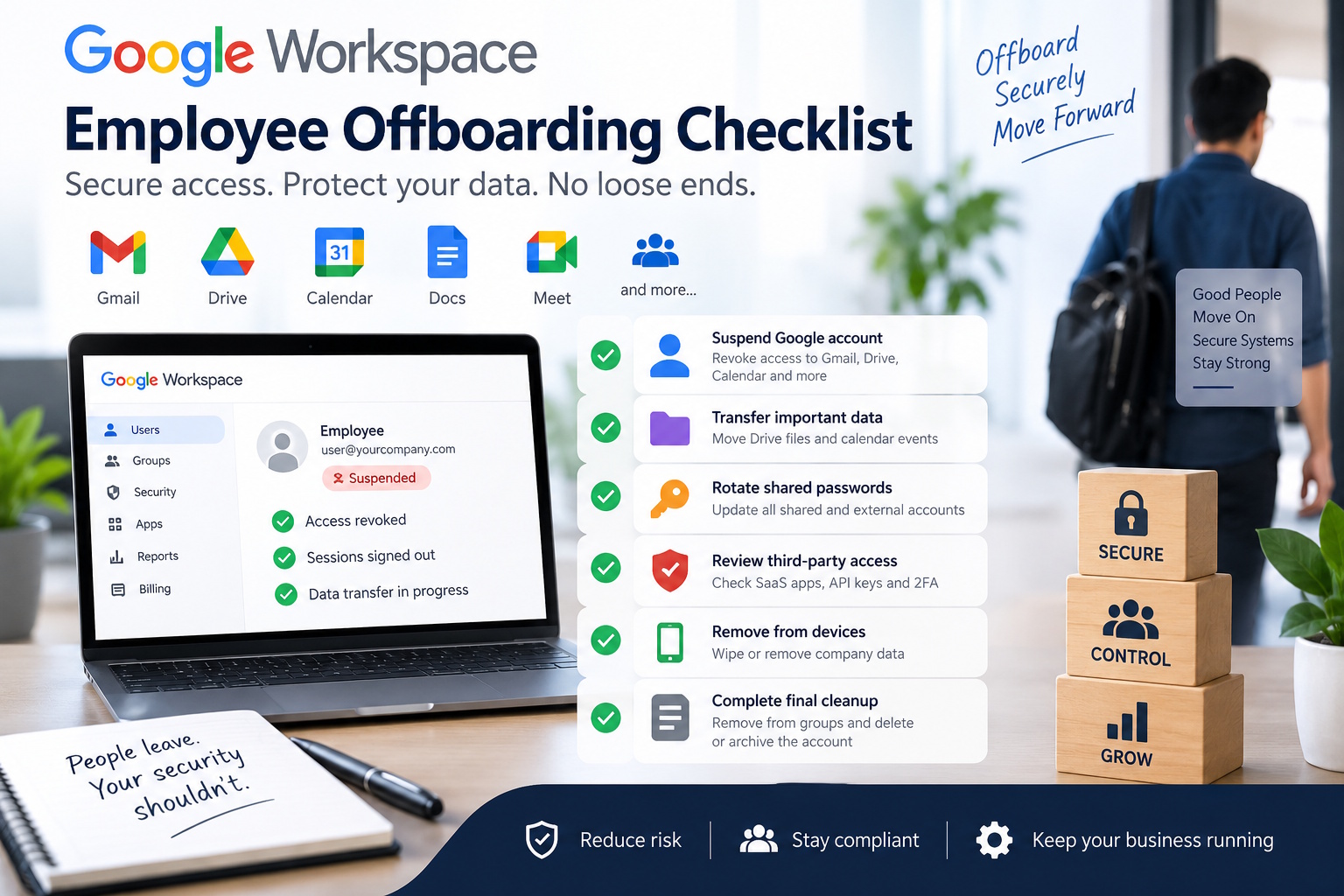
When you suspend or delete a user in the Admin console, they lose access to Gmail, Drive, Docs, Calendar and Meet. Third-party tools where they signed in with Google also lock them out, because the login depends on an account that no longer works. You can transfer their Drive files and calendar events to a manager before deleting.
That’s the easy 70%. The rest lives outside Google.
Where do the gaps usually hide?
In every team I’ve seen, it’s the same list:
- Shared logins. The company Instagram, the domain registrar, the Wi-Fi admin panel, the Amazon Business account. One login, five people know it.
- Tools with their own username and password. Older SaaS, supplier portals, government and banking sites that don’t support Google sign-in.
- Personal devices. Passwords saved in someone’s personal Chrome profile or phone keychain.
- Secrets in random places. API keys in a Slack DM, a Notion page called “logins,” a sticky note on the office router.
The uncomfortable part: after the person leaves, they still know those passwords. Suspending their Google account does nothing about what’s in their head or on their phone.
This matters more than it sounds. In the 2025 Verizon Data Breach Investigations Report, compromised credentials were the initial way in for 22% of breaches. A former employee is rarely malicious. But their old laptop, their reused passwords and their infected home PC are all ways for those credentials to end up somewhere bad.
The checklist
This is split by timing, because some things need to happen before the last day and some after.
Before the last day
- Ask the person, plainly, which shared accounts they use. Don’t rely on memory or an old spreadsheet. They’ll know things you don’t.
- Find out which accounts are registered to their email address. Billing contacts, domain registrars and ad accounts are the classic ones. Move them to a role address like billing@ or ops@.
- Check for 2FA tied to their phone. If the only authenticator for the company PayPal is on their personal phone, you have a problem. Move it now, while they’re still helpful.
- Transfer ownership of Drive files, Google Groups they manage and any shared drives they own.
On the last day
- Suspend the Google Workspace account. Suspend first, delete later: suspension is reversible and keeps data intact while you finish the handover.
- Sign them out of all sessions and reset their password from the Admin console.
- Remove them from Google Groups, especially any that grant access to other tools.
- Wipe or remove company data from their mobile devices if you use Google endpoint management.
In the first week after
- Rotate every shared password they had access to. Yes, all of them. This is the step people skip because it’s tedious.
- Update the new passwords wherever the team stores them, and tell the people who need them.
- Review OAuth app access and any API keys they created.
- Delete the account (or convert it to an archived user) once the data transfer is done.
Why is rotating shared passwords so painful?
Because you usually don’t know what they had access to.
If passwords live in a spreadsheet, a group chat, or people’s heads, there’s no record of who saw what. So you either rotate everything (and break things for everyone) or rotate nothing (and hope). Most teams choose hope.
The fix isn’t a better spreadsheet. It’s having shared credentials in a place that knows who has access, with access that follows the person’s Google account. When that account is suspended, access to the vault should go with it, automatically. Then the list of passwords to rotate is a filter, not an investigation.
That’s the reasoning behind password managers built on top of Google Workspace, such as Passwd: people sign in with their Google account, access is managed through Google Groups, and suspending the user in the Admin console removes their vault access in the same move. Whatever tool you pick, check that it works this way. A password manager with its own separate user list just creates a second offboarding checklist.
A quick word on the “we’re too small for this” feeling
A 12-person company has fewer accounts than a 500-person one. It also has fewer people who know which accounts exist. When your office manager leaves, they might take the only memory of where the domain is registered.
Small teams don’t need a heavy process. They need the three questions above asked every time: what did they have access to, what’s registered to their email, and what’s tied to their phone.
Make it repeatable
The best offboarding checklist is the one someone actually runs. A few ways to make that likely:
- Keep it in one place, owned by one person (usually ops or IT, not HR alone).
- Trigger it from the HR side the moment a leaving date is confirmed.
- Review it after each departure. If you found a forgotten account, add it to the list.
Offboarding isn’t glamorous work. But it’s one of the few security tasks where a checklist and 30 minutes can close a real hole.
FAQ
Should I suspend or delete a departing user in Google Workspace? Suspend first. It blocks access immediately and keeps data so you can transfer it. Delete once Drive files and other data are handed over.
Does suspending a Google account revoke access to third-party apps? It does for apps that use “Sign in with Google.” It doesn’t for apps with a separate username and password, which is why shared credentials need their own step.
Do I really need to change shared passwords when someone leaves? Yes, for any account they could access. They may still remember the password or have it saved on a personal device.
How long should offboarding take? For a small team, the core steps take under an hour if you know where credentials are stored. Most of the time goes into finding out who had access to what.
-

-

-

-

-

-
-

-

-
-