Formatting an SD card on Mac by mistake can wipe out important photos, 4K videos, RAW image files, audio clips, and work documents in seconds. This usually happens when a camera card is reused too early, a macOS prompt is accepted too fast, or a file system problem makes formatting seem like the only fix. The good news is that recover formatted SD card on Mac data recovery is often possible if you stop using the card immediately and choose a safe recovery method.
This guide explains what formatting really does, when recovery is still possible, which free checks are worth trying first, and when dedicated recovery software becomes the better option. If you need to recover a formatted memory card on Mac, the most important step is to avoid writing new files to the card before scanning it.
What Happens When an SD Card Is Formatted on Mac
In many cases, formatting does not instantly erase every file block on the SD card. Instead, the file system structure is rebuilt and the storage space is marked as available for reuse. That is why formatted SD card recovery can still work, especially when the card has not been used again after the format.
However, the recovery result depends on the type of format, the card condition, and what happened afterward. If new videos, photos, or exported files were saved to the same card, some old data may already be overwritten.
Can You Recover a Formatted SD Card on Mac?
Yes, often you can. Quick formatting usually leaves a better recovery window than long-term reuse of the card. That said, recovery is never something to delay. The longer the card stays in active use, the lower the chances become for complete restoration.
For users handling camera cards, drone media, GoPro footage, or portable storage, a structured formatted SD card recovery workflow is usually more reliable than random trial and error.
Recovery Outlook by Situation
- Quick-formatted card and no new data written — often a strong recovery chance
- Formatted card used only briefly afterward — partial recovery may still be possible
- Card shows corruption or read errors — mixed outcome depending on severity
- Physical card damage — lower software recovery success
- Large amount of new data saved after format — low chance for full recovery
What to Try Before Using Recovery Software
Method 1: Check Whether the Files Exist Somewhere Else
Before scanning the SD card, check whether the missing files were already imported into Photos, Finder folders, an external SSD, iCloud Drive, or a NAS backup. This is the fastest free check and can save time if the format happened after a successful copy.
Method 2: Test Another Reader or Port
Sometimes a user assumes the card is empty after formatting, but the real issue is a connection error. A weak card reader, unstable USB adapter, or faulty port can make detection unreliable on Mac.
Method 3: Avoid Repair-First Mistakes
Disk tools may detect the card, but they are not designed for deep file recovery. Repeated repair attempts, reformatting again, or copying new files onto the card before scanning can make the original loss harder to reverse.
Limit: built-in methods can help with diagnosis, but they usually do not provide preview, selective recovery, or deeper support for mixed photo and video recovery from formatted media.
Why Recovery Software Is Often the Better Option
A dedicated recovery tool gives you a more controlled process. Instead of changing the card state again and again, you can scan the formatted SD card, review recoverable file types, preview results, and save restored files to another location. That matters because formatted card recovery is really a race against overwrite risk.
For users who want a more guided option, Wondershare Recoverit fits well because it focuses on deleted, formatted, corrupted, and inaccessible storage scenarios. It is especially useful when the card contains mixed content such as JPG, PNG, RAW, MOV, MP4, PDF, and archive files.
Method Comparison
- Check imported copies or backups — fastest and free — only works if another copy already exists
- Try another reader or port — useful for access checks — does not restore formatted data by itself
- Use system repair tools — limited for real recovery — may change the card state before file restoration
- Use recovery software — strongest choice for formatted card scanning, preview, and selective restore
Recoverit for Formatted SD Card Recovery on Mac
Recoverit is a practical option when you need to recover files from a formatted SD card on Mac without relying only on backup luck. It is relevant for photographers, creators, students, and office users who need more than a basic “does the card open” check.
A better memory card recovery tool should support removable media, major file formats, preview before recovery, and a workflow that does not force users into blind restore attempts. Recoverit matches those needs while staying friendly for non-technical users.
Why Recoverit Is Worth Considering
- Supports SD cards, microSD cards, CF cards, and other removable storage devices
- Works for photos, videos, documents, archives, and other common file types
- Preview helps confirm whether formatted-card files are still usable before recovery
- Selective restore gives more control than recovering everything blindly
- Useful for formatted, deleted, corrupted, and inaccessible storage scenarios
- Beginner-friendly workflow lowers the risk of making the problem worse during recovery
3 Steps to Recover a Formatted SD Card on Mac
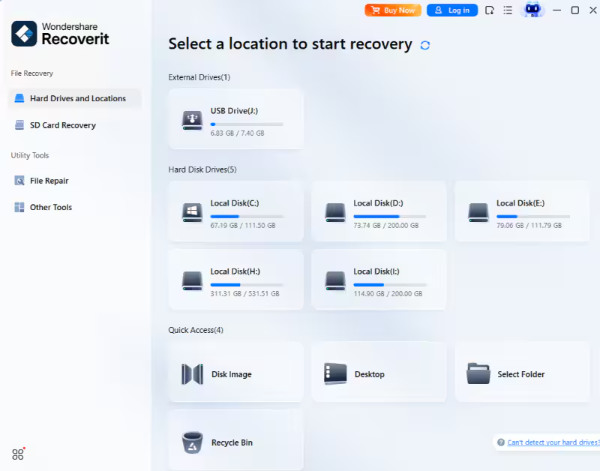
Step 1: Connect the Formatted SD Card and Select It
Insert the SD card into your Mac using a stable card reader, open Recoverit, and choose the formatted SD card from the list of devices. This step makes sure you are scanning the correct removable drive rather than the Mac system disk.
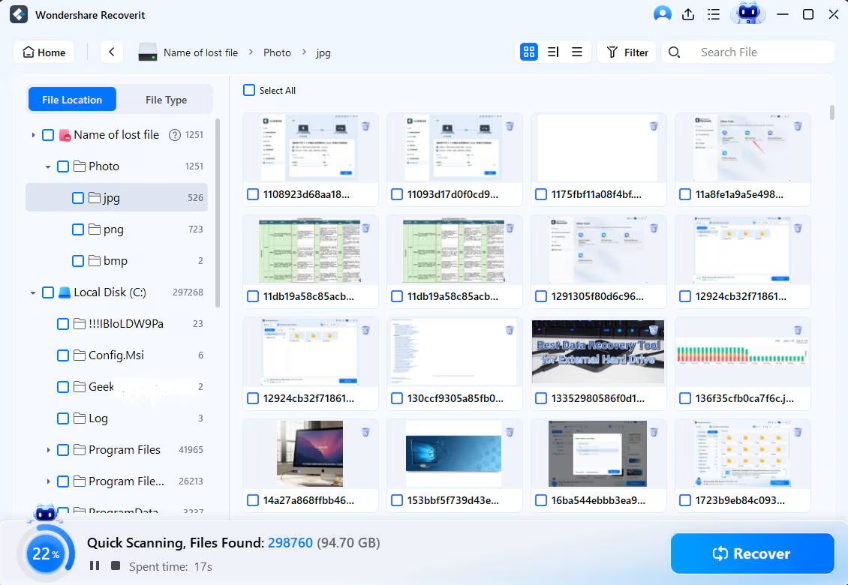
Step 2: Scan the Card for Recoverable Files
Start the scan and let the tool search for deleted and formatted data across file categories. During this stage, the software identifies recoverable images, videos, and documents that still exist on the card before they are fully overwritten.
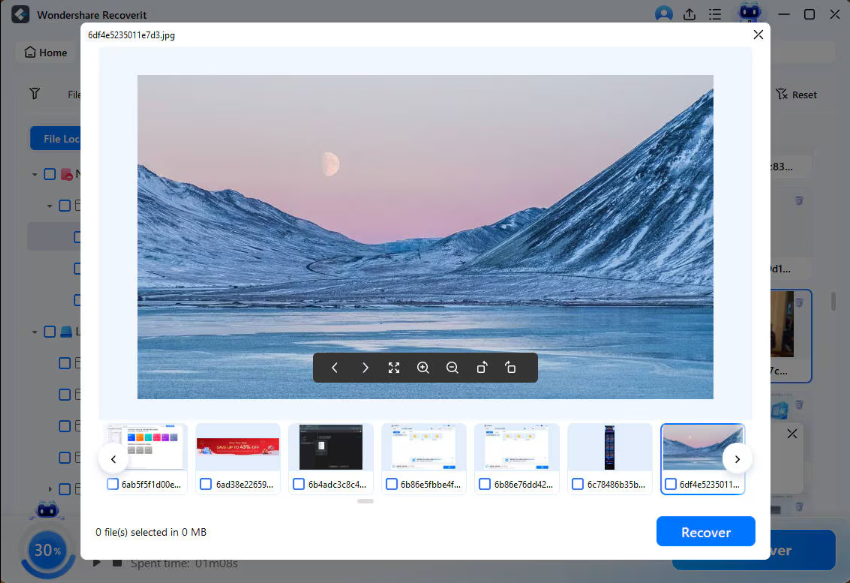
Step 3: Preview and Recover Files to Another Drive
Preview the files you want back, then save them to your Mac or another external drive. Do not restore them back to the same SD card, because that can overwrite other missing data and reduce the remaining recovery chance.
Best Practices After Formatting an SD Card by Mistake
- Stop using the SD card immediately after the format
- Do not copy new files to the card before recovery
- Avoid formatting the card again just to test whether it helps
- Use a reliable reader and stable Mac connection during scanning
- Recover files to another drive, not the same SD card
- Back up restored files to at least two locations afterward
- When Recovery May Be Limited
It is better to be clear about the limits. No recovery tool can guarantee full results if the formatted SD card has already been heavily reused, physically damaged, or affected by severe corruption. Large video files, fragmented data, and damaged RAW media may recover only partially in some cases.
That is why speed matters. The earlier you stop using the card and start scanning, the better your recovery window usually is.
Why Choose Recoverit
- Good fit for Mac users dealing with accidental SD card formatting
- Strong support for photo, video, document, and removable-media recovery
- Preview and selective recovery provide more control than blind restore attempts
- Practical for formatted, deleted, corrupted, and inaccessible SD card cases
Conclusion
If you need to recover a formatted SD card on Mac, the safest strategy is to stop using the card, avoid repair-first mistakes, and scan it with a recovery tool built for removable media. Free checks are still worth trying, but they do not solve every formatting scenario. When the card holds important photos, videos, or documents, a guided workflow like Recoverit is usually the more practical choice.