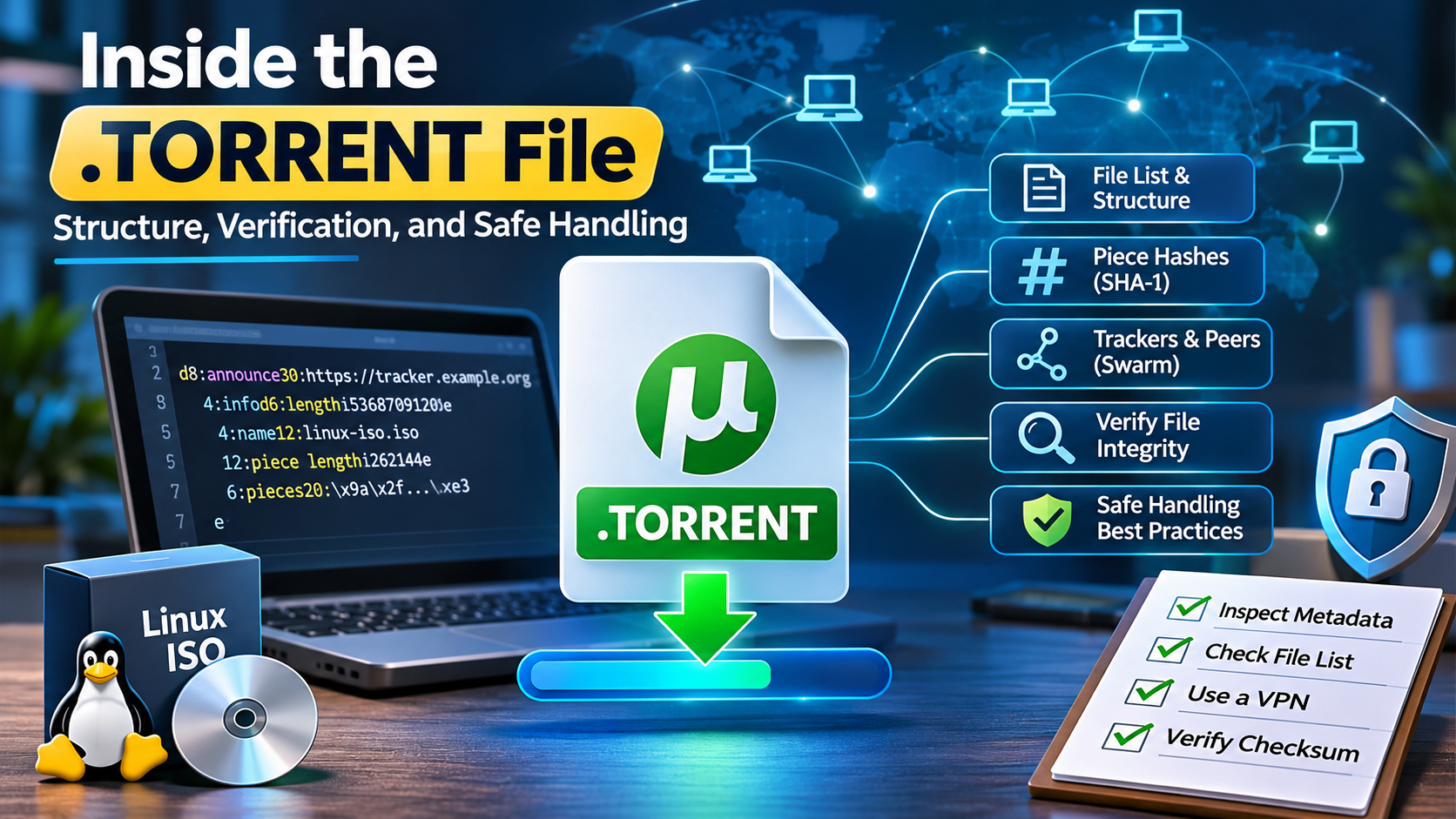
What Is Actually Inside a .TORRENT File? Structure, Verification, and Safe Handling
You click a download link for a 5 GB Linux installer, and your browser finishes in half a second. Sitting in your Downloads folder is a tiny 28 KB file ending in .torrent. If you double-click it without a BitTorrent client installed, your operating system either asks which app to use or opens a wall of unreadable gibberish in a text editor.
That confusion trips up a lot of people. A .torrent file does not hold the movie, dataset, or software installer you want. It is a compact set of instructions – basically a digital manifest – that tells a peer-to-peer client what files belong to a package, how to find other computers sharing them, and how to confirm every single chunk arrived intact.
BitTorrent gets used for plenty of ordinary, legitimate work. Linux distributions like Ubuntu and Fedora push release ISOs through it to keep server bills sane. Universities and open-science groups use it to move multi-terabyte research datasets. Even game studios have relied on peer-to-peer distribution for massive launch-day patches. Knowing how the .torrent format works under the hood makes it much easier to inspect what you are downloading, avoid disguised malware, and keep your own network out of trouble.
Why a Tiny Metainfo File Can Pull Down Gigabytes of Data
Standard HTTP downloads work on a one-to-one model: your browser asks a single server for a file, and that server sends every byte down the pipe. When ten thousand people grab a new operating system image at the same time, that server slows to a crawl or falls over completely.
BitTorrent flips the layout. Instead of pulling a whole archive from one machine, your client connects to a group of other users – called a swarm – who already hold pieces of the same file. While you download chunk 42 from someone in Germany, you might upload chunk 17 to someone in Ohio.
To pull that off without turning the download into corrupted soup, every peer needs the exact same blueprint. That blueprint is the .torrent file. Because it only stores names, sizes, tracker addresses, and cryptographic fingerprints rather than the payload itself, a manifest describing a 40 GB video archive often weighs less than a single smartphone photo.
Reading What Sits Inside a .TORRENT File
If you drop a .torrent file into an online file viewer or open it in a plain text editor, you will see readable words mixed with strange numbers, colons, and letters like d, l, and e. That formatting is not random corruption. It is a lightweight serialization format called bencoding, defined in the official BitTorrent Protocol Specification.
Bencoding keeps file sizes small and parsing predictable across different operating systems. Strings are prefixed by their character length and a colon (so 4:spam represents the word “spam”), integers sit between i and e, lists sit between l and e, and dictionaries – key-value pairs sorted alphabetically – sit between d and e.
Inside that top-level dictionary, two keys do almost all the heavy lifting:
- announce: The URL of the tracker server (or a list of backup trackers under announce-list) that introduces your client to other peers in the swarm.
- info: A nested dictionary describing the actual payload. For a single-file download, it lists the suggested filename (name) and total byte size (length). For multi-file folders, it includes a files list mapping out every subdirectory and filename.
- piece length: The fixed byte size used to slice the payload into transferable chunks, commonly 256 KB or larger for multi-gigabyte archives.
- pieces: A long, raw binary string made up of concatenated 20-byte SHA-1 hashes, one for every single piece of the download.
That info dictionary also produces something called the info_hash. Your client hashes the exact bencoded info block to create a unique fingerprint for the entire torrent. When two peers shake hands, they compare info-hashes first. If the hashes do not match, the connection drops immediately. Magnet links skip the .torrent file altogether by handing your client that info-hash directly, forcing it to fetch the metadata from other peers instead of a web server.
Inspecting File Lists and Catching Disguised Payloads
One big advantage of having a .torrent file on disk is that you can inspect its entire directory tree before downloading a single byte of payload. Most modern clients pop up a preview window showing every file name and size inside the manifest, and browser-based torrent viewers let you check the metadata without even opening a P2P app.
Taking ten seconds to scan that file list prevents one of the oldest tricks in peer-to-peer malware distribution. Attackers routinely bundle malicious executables inside folders that look like harmless media releases, software utilities, or document packs. Sometimes they hide the real file type by stacking two extensions together – for example, naming a payload ReadMe.txt.exe or Episode01.mp4.scr.
On Windows systems configured to hide known file extensions, the trailing .exe or .scr disappears from view, leaving what looks like a harmless text or video file. As detailed in CISA’s breakdown of double file extensions, adversaries rely on this exact masquerading technique because the operating system always executes based on the final extension, not the first one.
Before you hit “Start” on any torrent, look closely for a few warning signs inside the file list:
- Unexpected executable formats like .exe, .bat, .cmd, .lnk, .hta, or .scr sitting inside what should be an audio, video, or e-book folder.
- Password-protected .zip or .rar archives paired with a text file telling you to visit a sketchy website to grab the password. Standard antivirus scanners cannot peek inside encrypted archives until you extract them.
- Files whose sizes make zero sense – a feature-length HD video sitting at 4 MB is almost certainly a trap or a fake codec installer.
You can uncheck suspicious files in your client’s preview window, though if a torrent contains even one disguised executable, the smartest move is to delete the .torrent file and find a clean source.
What Happens on Your Network When You Join a Swarm
Even when you are downloading completely legal open-source software, BitTorrent behaves very differently from ordinary web browsing. To trade pieces directly with strangers, your client has to advertise its public IP address and listening port to the tracker and every other peer in the swarm.
Anyone connected to that same swarm can view a live list of participating IP addresses. That openness has two practical side effects. First, your internet service provider can often spot peer-to-peer traffic patterns and throttle your bandwidth during peak evening hours, turning a quick ISO download into an all-night wait. Second, exposing your real IP address in a public swarm links your home network directly to whatever files you are fetching or seeding, and leaves that address visible to automated scrapers or curious peers.
Routing your client through an encrypted tunnel solves both problems by hiding your real IP from the swarm and masking the traffic type from your ISP. Not every privacy tool handles heavy P2P transfers well, though. Some services block BitTorrent outright on most of their network, while others drop speeds so sharply that large files crawl. If you are weighing options for regular downloads, Cybernews’ ranking of VPNs built for torrenting compares providers like NordVPN and Proton VPN across P2P server availability, speed retention, kill switches, and DNS leak protection, making it easier to see which services actually hold up under sustained peer-to-peer traffic.
One technical habit worth picking up if you use a VPN with a client like qBittorrent: bind the client directly to the VPN’s virtual network interface in the advanced settings. A standard kill switch is helpful, but interface binding guarantees the torrent client cannot send or receive a single packet if the VPN tunnel drops unexpectedly.
Verifying File Integrity After the Download Finishes
BitTorrent already does a solid job of catching accidental corruption while files are in transit. Because every piece has a hash baked into the .torrent metadata, your client automatically discards bad chunks and requests them again from another peer.
Still, built-in piece hashing only proves that the files you received match what the creator of the .torrent file originally packaged. It does not prove that the .torrent file itself came from the official publisher. If someone tampered with an open-source installer and generated a fresh .torrent file for the modified version, every single piece hash will pass with flying colors.
That is why reputable publishers – especially Linux maintainers and software developers – post separate cryptographic checksums on their official HTTPS websites. Once your download wraps up, you can run a quick local command (certutil -hashfile filename SHA256 on Windows, or shasum -a 256 filename on macOS and Linux) and compare the output character by character against the publisher’s official value. According to NIST’s SHA-256 glossary reference, these hash digests exist specifically to detect whether a file has been altered at any point after the original digest was generated. Even a single flipped bit inside a 4 GB disk image changes the resulting hash completely.
Keeping Your File Workflow Clean
Working with .torrent files does not require memorizing every line of bencoded syntax, just a bit of healthy skepticism. Treat the .torrent file as a preview rather than a blind download button: inspect the metadata, turn on visible file extensions in your operating system, and watch out for stray executables tucked inside media folders. Pair that with network-level privacy when joining public swarms and a quick checksum verification once large installers finish, and peer-to-peer file sharing stays fast, predictable, and safe.
-

-

-

-
-

-

-

-

-

-