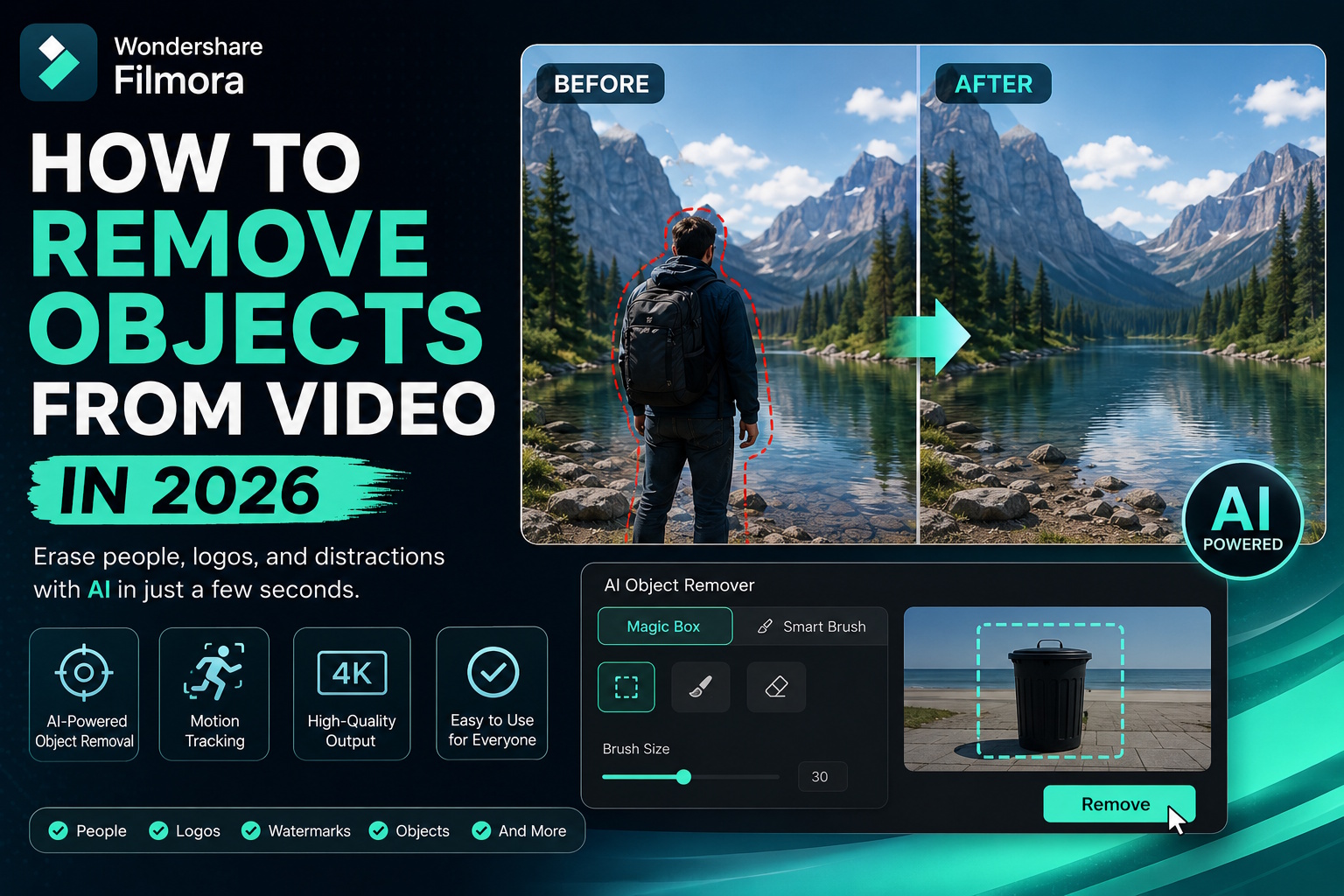
You can now remove an object from a video when a stray tourist or unwanted thing ruins your shot. In the past, editors masked every frame manually to fix these mistakes. Now, an AI-powered video object remover can automatically reconstruct the background for you.
This technology identifies distractions and replaces them with pixels that match the background. In this article, you’ll learn how to remove objects from a video, such as people, logos, and other unwanted elements. Scroll down to find out how easy it is to use Filmora for professional-looking videos.
Part 1. How To Remove Objects From Video Using Filmora
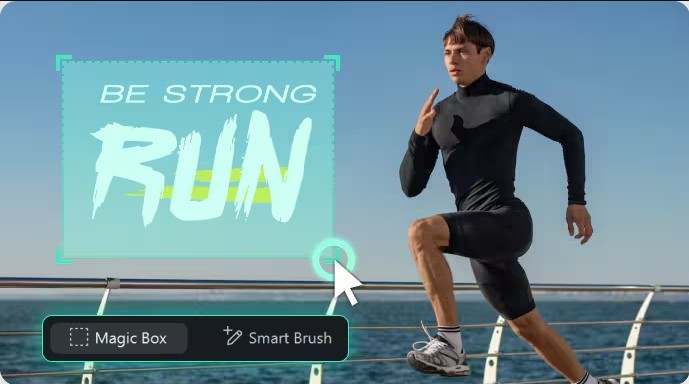
Wondershare Filmora is beginner-friendly and one of the best video editing software for removing unwanted objects from video using AI. You can use Filmora to erase static elements, such as people or moving things like cars. It supports brushing over single or multiple items with tools like Smart Brush, Magic Box, and Eraser, and the software generates background pixels to replace them.
Follow these steps to remove object from video on a desktop
Step 1: Import the Video
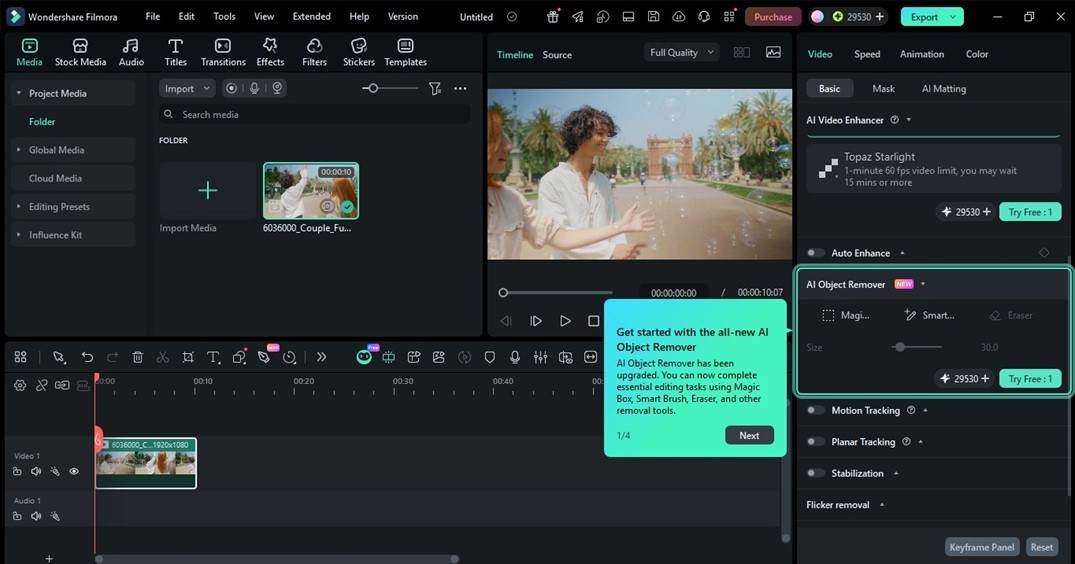
Open a new project and import your footage. Drag the clip onto the timeline to view the editing panel on the right side of the screen. Find the AI Object Remover feature inside the Video tab. Scroll down the list of options until you see the AI tools section.
Step 2: Choose a Method to Remove Things from Video
The software offers two ways to remove things from a video based on the shape and movement of the object.
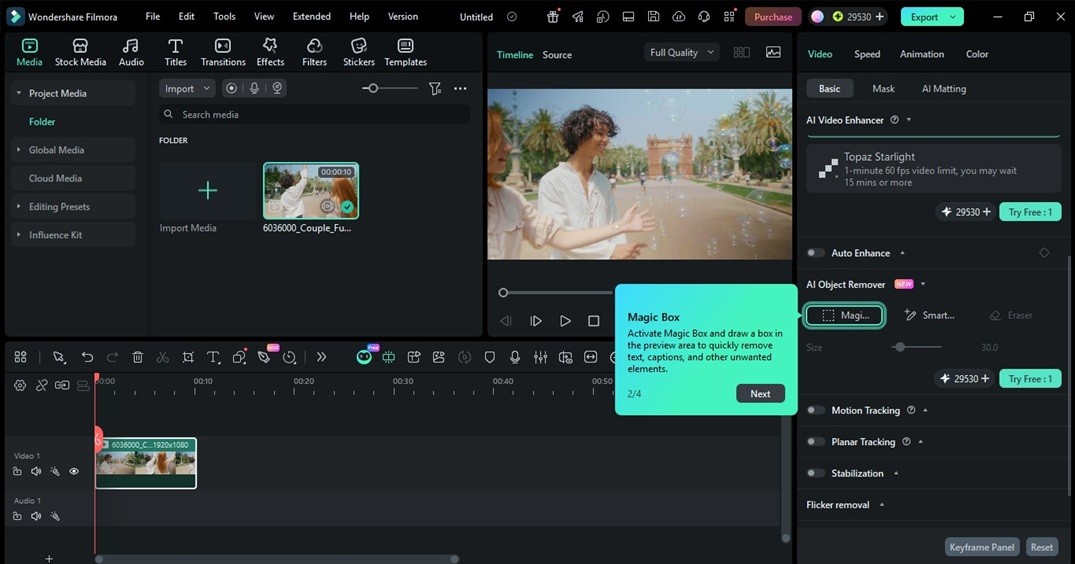
- Remove Object Using Magic Box
The Magic Box is the fastest choice for simple, static shapes. Draw a box around the item in the preview window. Click the Remove button to process the change.
- Remove Person Using Smart Brush
The Smart Brush is a better tool when you need to remove people from video or irregular items. Paint over the subject until you highlight the entire area. Use the Eraser tool to fix the edges of your selection. Click Remove once you finish the highlight.
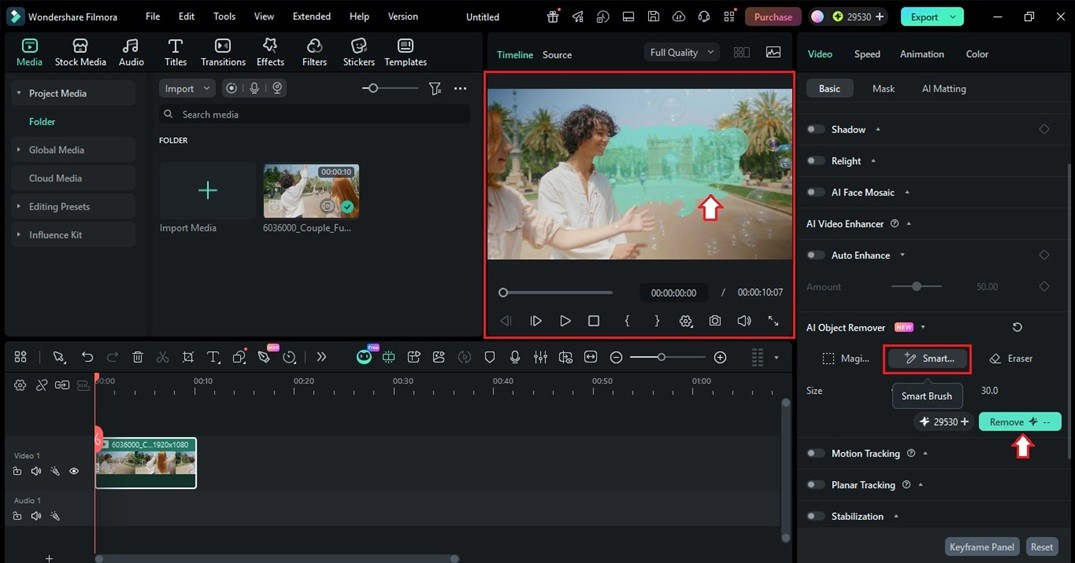
Step 3: Edit and Save the Video
The software saves the processed version in the Project Media folder on the left. You can apply more effects or move straight to the final export. Click the Export button in the top right corner to save your finished work.
Part 2. Common Uses for an AI Video Object Remover
An AI video object remover fixes small errors that usually need a reshoot. These tools allow you to remove a person from a video or clean up background distractions in seconds. See examples below
- Social Media Clips: You can erase objects from video, like trash cans or power lines, from your travel vlogs.
- Experienced Projects: Editors use video editing software to erase microphones or wires that accidentally appear in the frame.
- Privacy Protection: It is simple to hide license plates or home addresses to protect your personal information online.
- Product Marketing: You can quickly swap out old brand logos or outdated price tags from your promotional footage.
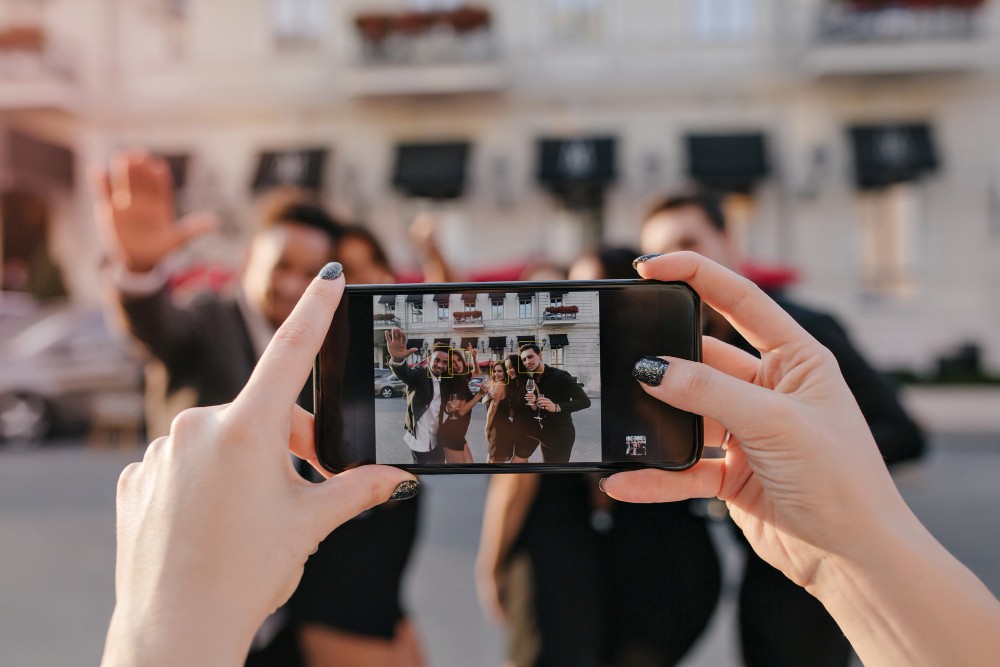
- Portrait Fixes: Photobombers often ruin the perfect shot, but you can easily remove an object from a video for free using trial versions of Filmora.
Part 3. Why Use Filmora To Remove Unwanted Objects From Videos
Filmora makes it easy to remove something from videos without spending hours on frame-by-frame edits. Here are several advantages for content creators who need fast and good results.
- Motion Tracking: The tool follows a moving person or car across the entire clip so the edit stays consistent.
- Smart Recognition: You can remove an element from the video without the AI erasing objects that overlap in the foreground.
- High-Quality Output: It creates clean footage that maintains the original resolution of your project.
- Easy to Use: Beginners and professional editors can erase objects from video clips using only a few clicks and a brush tool.
Part 4. Best Apps and Tools To Remove Objects From Videos
Using AI for object removal on videos is easier since you have plenty of options to choose from. Here are our top picks for the best desktop software and online tools
Filmora
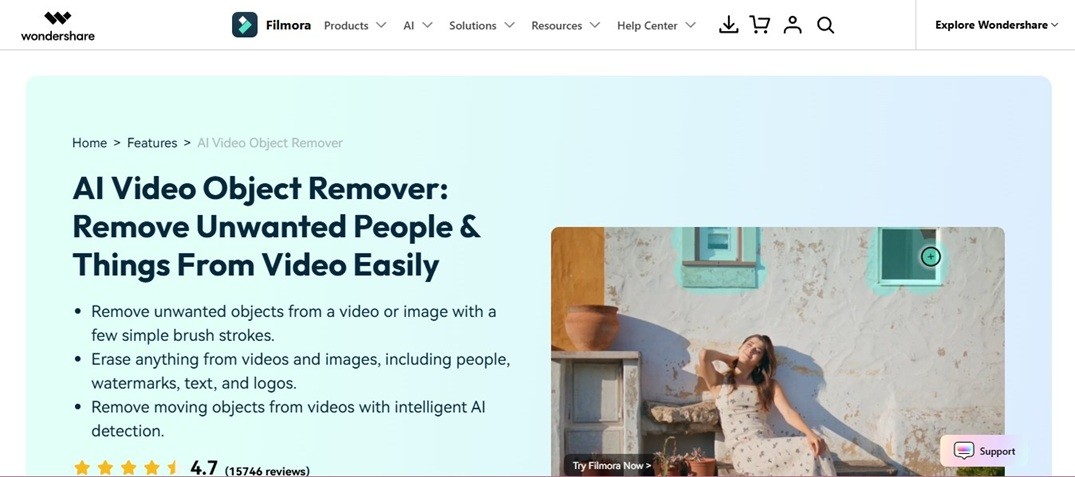
Filmora is an AI-assisted video editing software that allows desktop users to eliminate video static and moving objects. Just upload the video and use the AI Object Remover feature to highlight the elements you want to delete from the footage. It works with files locally, thereby ensuring your video content stays private while also increasing the processing speed of lengthy video editing tasks.
Fotor
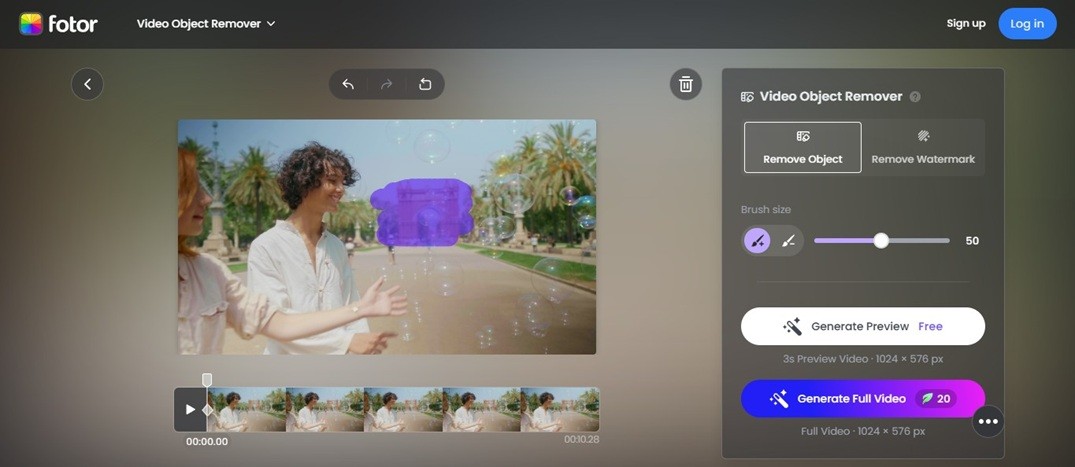
Fotor offers a quick way to remove objects from video online for free if you only need to fix a single frame or a simple watermark. Upload a clip and paint over the distraction you want to erase. Note that while it is accessible, the process speed depends on your internet connection.
AniEraser
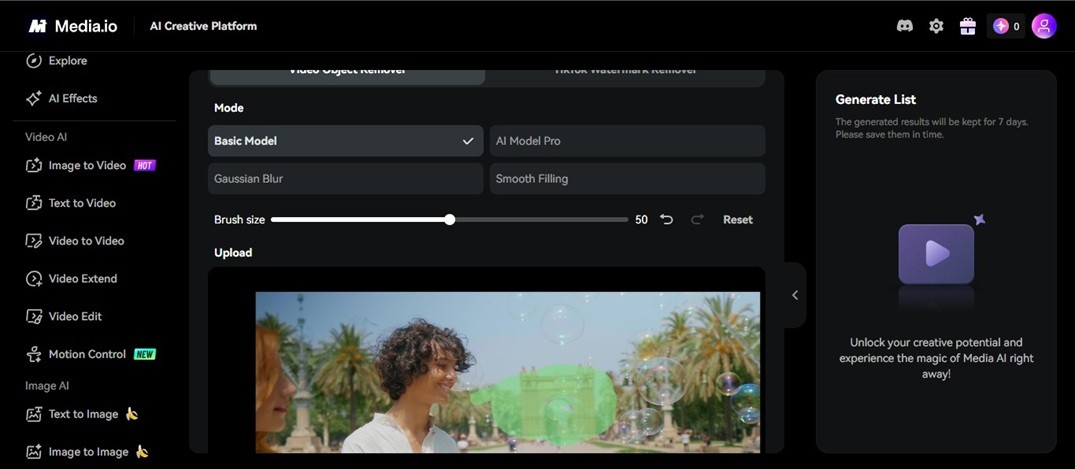
AniEraser helps creators remove an object from a video for social media. It includes various modes like Basic Model, Gaussian blur, and Smooth Filling alongside its removal features.
Online tools offer great convenience for one-off edits on the go. However, uploading large files to a browser can be slow and may raise privacy concerns for sensitive footage. A desktop video object eraser, such as Filmora video editor, provides the best balance of power and speed, which makes it a reliable choice for long projects.
Conclusion
Now, you know how to remove people from a video without spending hours on editing. AI tools now identify distractions like photobombers or power lines and replace them with new background pixels. These AI video object remover tools save time while keeping your footage sharp.
Download Filmora today to see how its tools clean up your files. It takes just a few clicks to remove an object from a video and finish your project.
FAQs
- How to remove a moving object in a video?
Filmora video editor uses AI tracking to follow and remove an object from a video, even if it moves across the frame. Brush over the item, and after a few seconds, the moving object will disappear.
2.How to remove a person from a video?
You can remove a person from a video by using the Smart Brush tool in Filmora. Highlight the individual you want to erase, and the AI replaces them with matching pixels. This tool works well for photobombers or unwanted crowds in your footage.
3. What AI is best for removing objects?
The Filmora video editor offers two ways to remove objects from video with AI. It balances processing speed with high-quality output to ensure your edits look natural. The intuitive interface makes it easy for beginners to remove an object from a video on their first try.