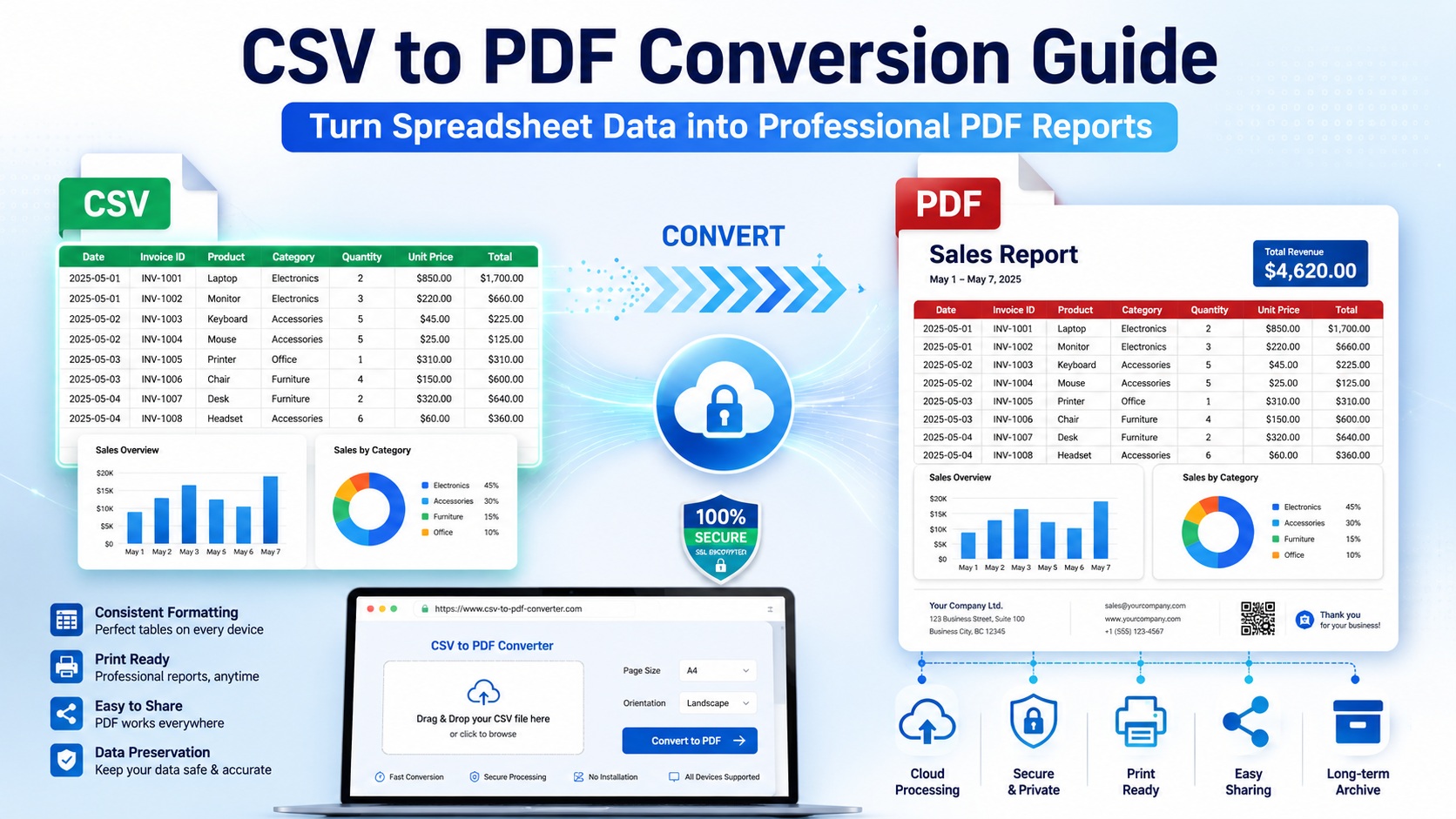
CSV is the universal language of data. Accounting tools, CRMs, analytics dashboards and online stores can all export a .csv. The format is tiny, plain and opens anywhere — which is exactly why it is everywhere. But that same simplicity makes CSV a poor choice when you need to present data. Open a .csv on the wrong device and you get a wall of comma-separated text: columns collapse, long numbers turn into scientific notation, and the neat table from your spreadsheet is gone. When the goal is to share, print or archive a record that looks the same for everyone, PDF is the right container.
Here is how to turn any CSV into a clean, professional PDF in under a minute — without installing anything.
Why convert CSV to PDF?
- Consistent layout. A PDF renders identically on every screen, OS and printer. Rows and columns stay exactly where you put them.
- Easy to share. Colleagues open a PDF anywhere — no spreadsheet app, no “which delimiter?” guesswork.
- Print-ready. Invoices, statements and exported reports print cleanly with predictable page breaks.
- Locked content. Recipients can read the numbers but will not nudge a cell out of place by accident.
- Archival friendly. PDF is a recognised long-term storage format; a raw CSV has no such guarantee of fidelity.
The fastest method: an online converter
If you only need this occasionally, there is no reason to install software. You can convert CSV to PDF right in your browser:
- Open the converter and drag your .csv onto the page.
- Optionally choose page size and orientation.
- Click convert and download the finished PDF.
Everything runs server-side, so it behaves the same on Windows, macOS, Linux, a Chromebook or a phone. Nothing is installed, and the uploaded file is processed and then removed — handy on a machine that is not yours.
Getting a clean result
- Check the delimiter. Most CSVs use commas, but European exports often use semicolons. A good converter detects this; if columns merge into one, re-export with a standard comma delimiter.
- Mind wide tables. With many columns, switch the PDF to landscape so nothing gets clipped at the page edge.
- Keep the header row. Column titles in the first row turn a dump of values into a readable, labelled report.
- Watch big numbers and leading zeros. Spreadsheets sometimes mangle long IDs or ZIP codes — verify them before converting if they matter.
When you need it in bulk
Converting one file online is perfect for a one-off. If you regularly turn many exports into PDFs — nightly sales reports, batches of invoices, monthly statements — a desktop converter with command-line support lets you script the whole job and hook it into a scheduled task, so the PDFs are waiting each morning. For the everyday “I just need this CSV as a PDF” moment, the browser route is hard to beat: no setup, no licence, no wait.
Is it safe?
For sensitive data, prefer a converter that processes files over an encrypted connection and deletes them afterwards. If the data is highly confidential, an offline desktop tool keeps everything on your own machine.
The bottom line
CSV keeps your data portable; PDF makes it presentable. With a browser-based converter you get accurate columns, a fixed layout and a file anyone can open — in three clicks and zero installs. Bookmark a reliable converter and the next time someone asks for “that report as a PDF”, it is a ten-second job.
-
-

-

-

-
-

-

-

-

-