
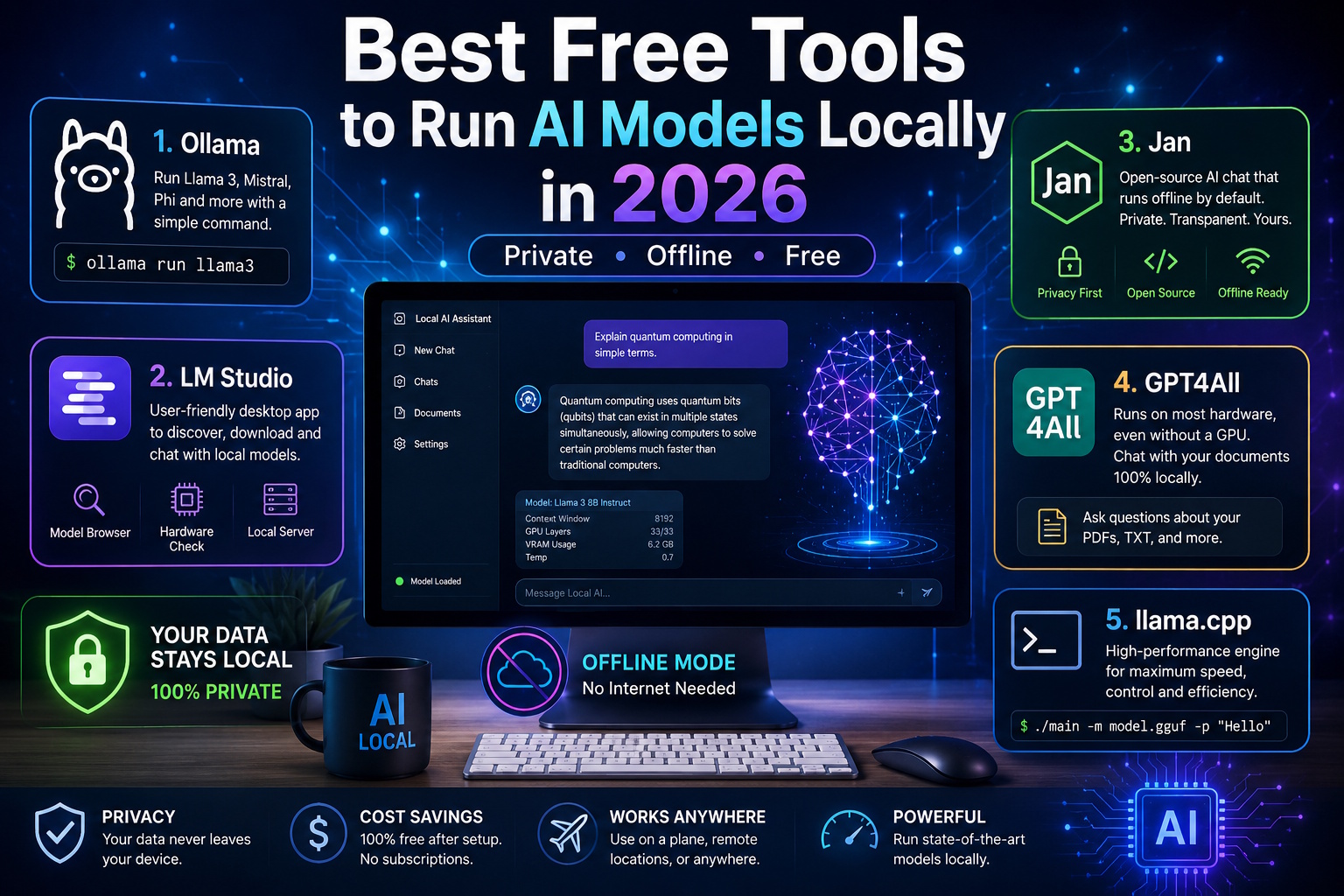
Artificial intelligence has moved from the cloud to the desktop. In 2026, you no longer need a paid subscription or an internet connection to use a capable AI language model — you can run one directly on your own computer, for free, with your data never leaving your machine. If you have ever wanted ChatGPT-style answers without the monthly fee or the privacy trade-offs, running a local model is the answer. This guide walks through why local AI is worth trying and the five best free tools to get started in 2026.
Why run AI models on your own computer?
Cloud AI services are convenient, but local models offer three advantages that matter more every year:
- Privacy. Everything you type stays on your device. Nothing is sent to a third-party server, which is ideal for sensitive work, confidential documents, or anyone who simply prefers their data stay private.
- Cost. Once the software is installed, running a local model is free. There are no per-message charges and no subscription — you only pay for the electricity your computer already uses.
- Offline access. A local model works on a plane, in a remote location, or anywhere your internet is unreliable. The AI lives on your hard drive, not on a website.
The trade-off is that local models depend on your hardware, and the very largest models still need serious computing power. But thanks to smaller, highly optimized models, even a modest laptop can now run a genuinely useful assistant.
What you need to get started
You do not need a supercomputer. The single most important factor is memory — either your graphics card’s VRAM or your system RAM. As a rough guide:
- 8–16 GB of RAM: comfortably runs small models (around 3–8 billion parameters), which are perfect for chat, writing help, and summarizing.
- A dedicated GPU with 8 GB or more of VRAM: runs the same models far faster and unlocks larger ones.
- Storage: each model is a download of a few gigabytes, so keep some free disk space.
Apple Silicon Macs (M-series chips) are especially good at this because they share memory between the processor and graphics, letting them punch well above their weight for local AI.
The 5 best free tools to run local AI models
1. Ollama
Ollama is the tool most people start with, and for good reason. It reduces the whole process to a single command: type ollama run llama3 and it downloads and launches the model for you. It runs on Windows, macOS, and Linux, supports a large library of open models, and quietly handles all the technical setup in the background. If you are completely new to local AI, a clear walkthrough helps — this complete guide to getting started with Ollama covers installation, choosing your first model, and the basic commands. For most beginners, Ollama is the fastest path from zero to a working local assistant.
2. LM Studio
If you prefer buttons over a command line, LM Studio is the friendliest option. It is a polished desktop application with a built-in model browser, so you can search for a model, see whether it will fit your hardware, download it, and start chatting — all through a graphical interface. It also includes a local server mode, which lets other apps on your computer connect to the model you are running. LM Studio is the best choice for non-technical users who want a clean, ChatGPT-like window without touching a terminal.
3. Jan
Jan is an open-source application that positions itself as a fully offline alternative to ChatGPT. It is free, transparent, and built around privacy: by default, everything runs locally and nothing is tracked. Jan offers a clean chat interface, supports a range of open models, and can also connect to cloud APIs if you ever want to mix local and online models in one place. For users who care about open-source software and data ownership, Jan is an excellent pick.
4. GPT4All
GPT4All is a desktop app designed to run on everyday hardware, including computers without a dedicated graphics card. It is lightweight, easy to install, and includes a handy feature that lets you chat with your own documents — point it at a folder of PDFs or text files and ask questions about their contents, all processed locally. If your machine is older or you want a simple tool that just works, GPT4All is a dependable, low-friction option.
5. llama.cpp
llama.cpp is the high-performance engine that quietly powers many of the tools above. It is more technical and runs from the command line, but it offers maximum speed and control, squeezing strong performance out of ordinary hardware. Advanced users choose llama.cpp when they want to fine-tune exactly how a model runs, integrate it into their own software, or get the best possible efficiency. It is not the easiest starting point, but it is the most powerful and flexible.
Which tool should you choose?
The right tool depends on your comfort level:
- Total beginner who wants a simple window: start with LM Studio or Jan.
- Want the most popular, well-supported option: use Ollama — it has the biggest community and model library.
- Older or low-spec computer: try GPT4All.
- Developer who wants maximum control: go with llama.cpp.
There is no wrong answer, and the tools are free, so trying two or three to see which feels best costs nothing but a little time and disk space.
Final thoughts
Running AI on your own computer used to require deep technical knowledge. In 2026, it takes a few minutes and a free download. Whether your priority is privacy, saving money, or simply having an assistant that works offline, there has never been a better time to bring AI in-house. Pick one of the five tools above, download a small model to start, and you will have your own private AI assistant running before your coffee gets cold.
-

-

-

-
-

-

-
-

-

-

